Rider App: Setup
Setup → See Jobs → Deliver → Close
Two Types of Rider
The job flow is slightly different depending on your rider type.
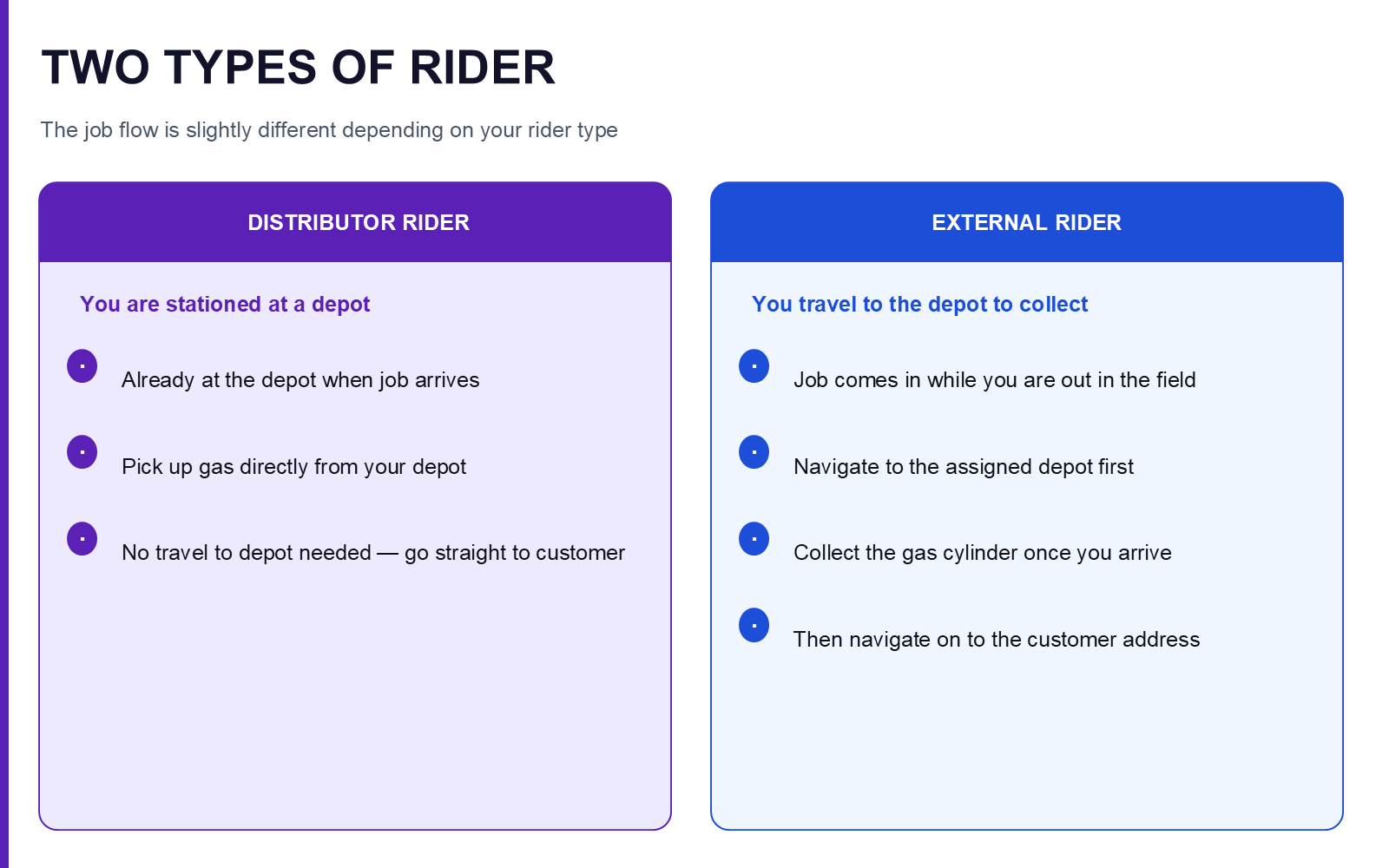
| Distributor Rider | External Rider | |
|---|---|---|
| Base | You are stationed at a depot | You travel to the depot to collect |
| When a job arrives | Already at the depot when job arrives | Job comes in while you are out in the field |
| Getting the gas | Pick up gas directly from your depot | Navigate to the assigned depot first, collect the gas cylinder once you arrive |
| To the customer | No travel to depot needed — go straight to customer | Then navigate on to the customer address |
1. Admin Enables Your Account
This happens before you download the app — contact your supervisor.
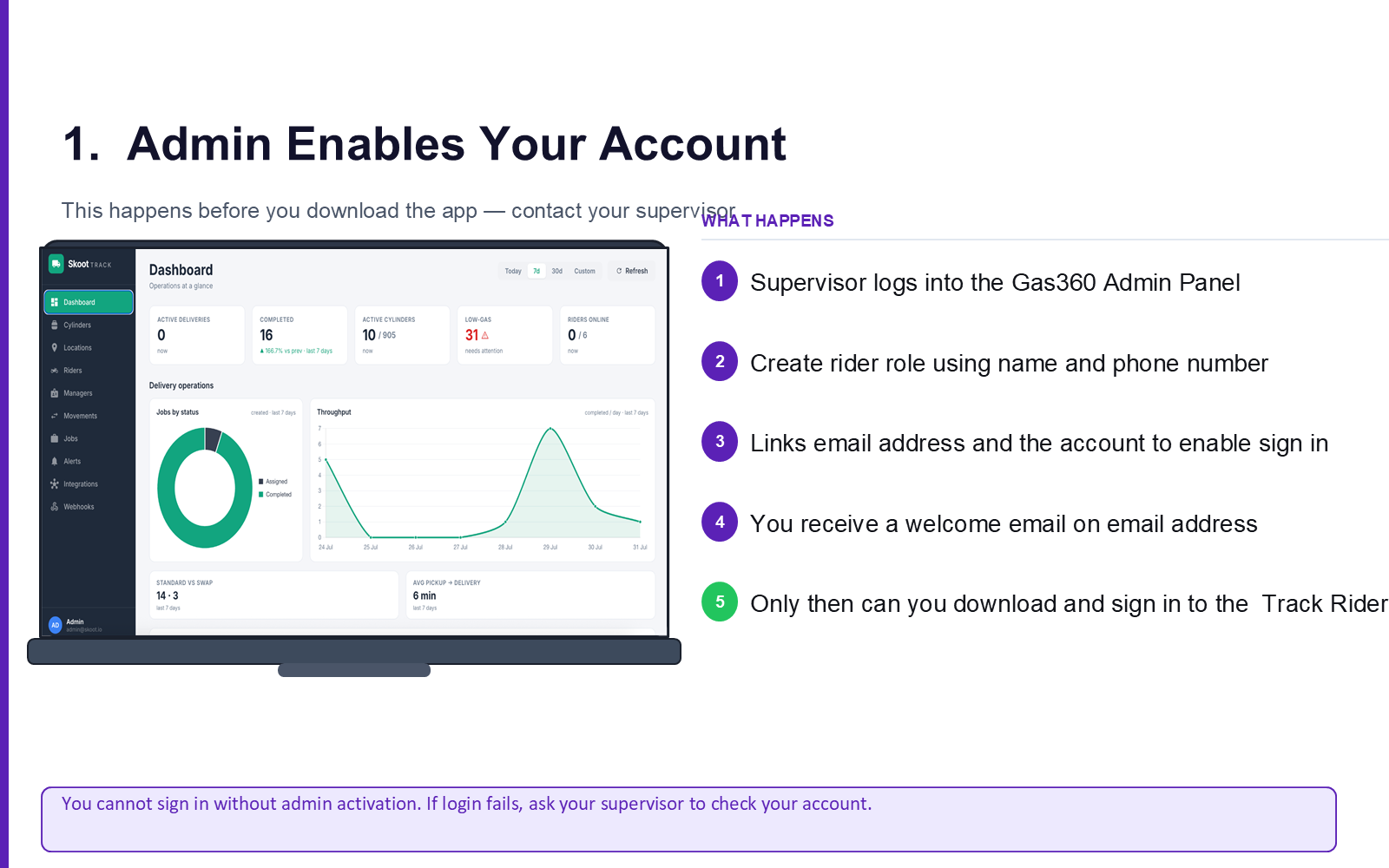
What happens:
- Supervisor logs into the Gas360 Admin Panel
- Creates your rider role using your name and phone number
- Links your email address to enable sign in
- You receive a welcome email
- Only then can you download and sign in to the Track Rider App
Tip
You cannot sign in without admin activation. If login fails, ask your supervisor to check your account.
2. Download the Rider App
The Rider App is separate from the Customer App.
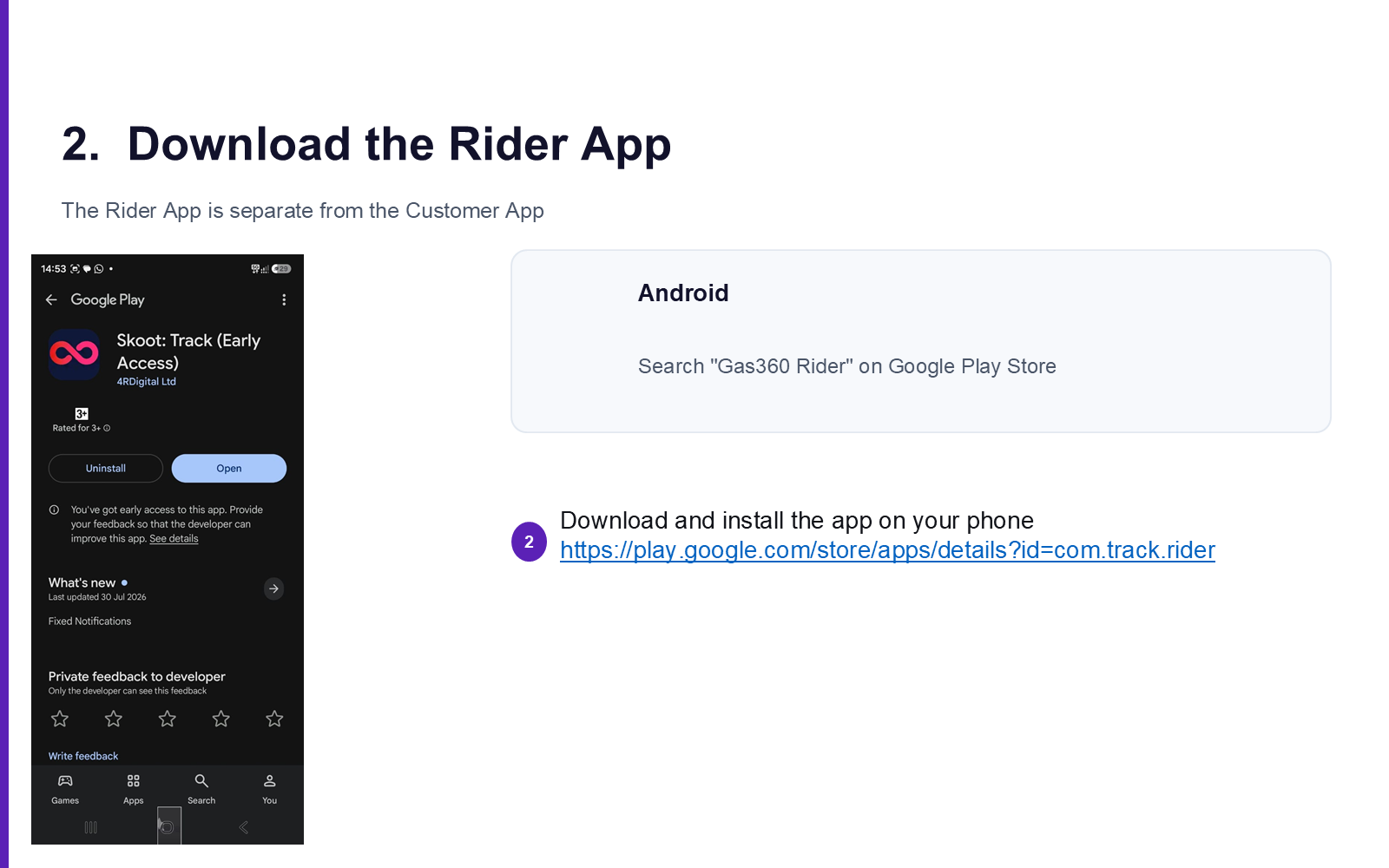
Android: Search "Gas360 Rider" on the Google Play Store.
Download link: play.google.com/store/apps/details?id=com.track.rider
3. Sign In with Your Email
Use the email address your admin registered you with.
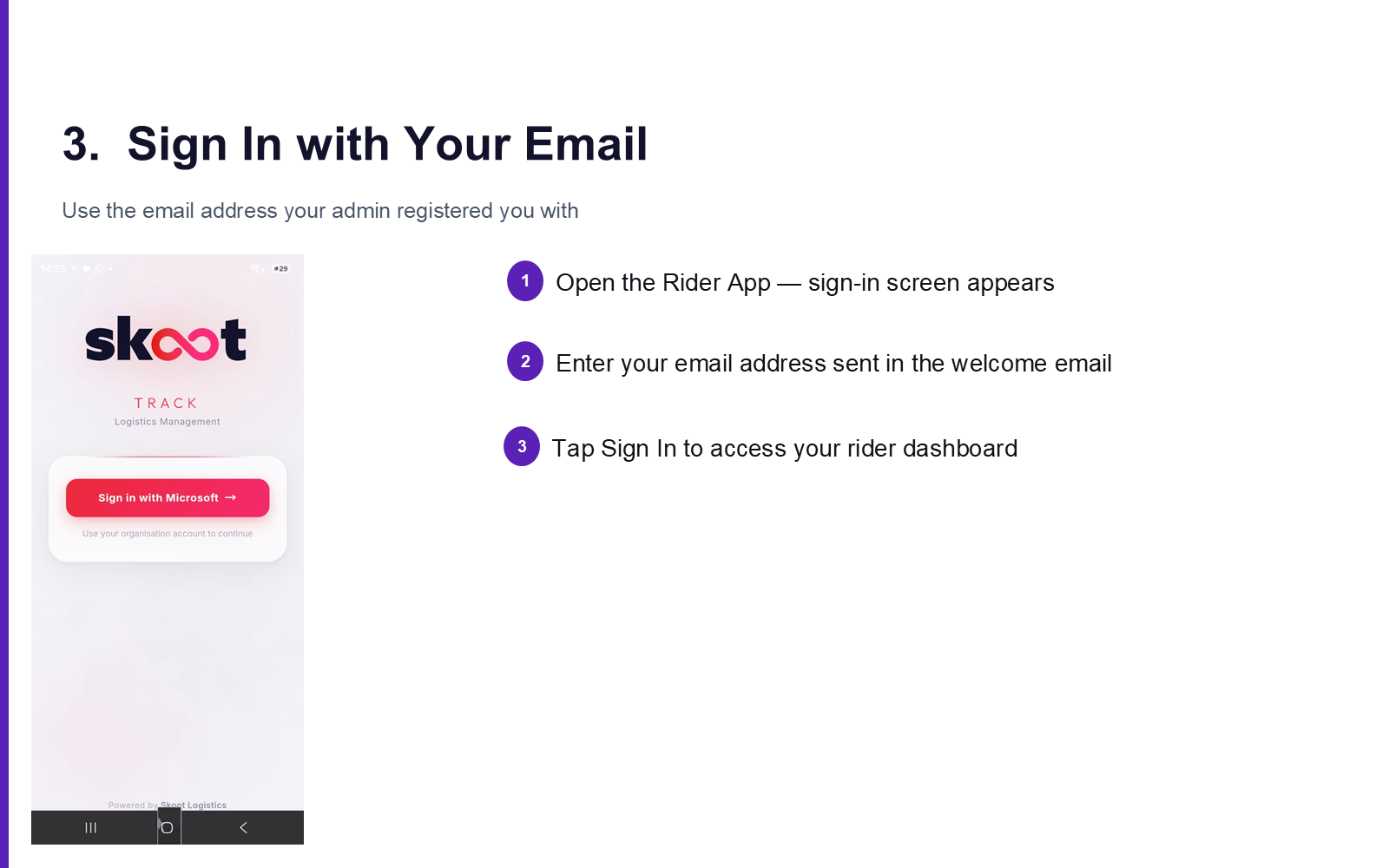
What you see:
- Open the Rider App — sign-in screen appears
- Enter your email address sent in the welcome email
- Tap Sign In to access your rider dashboard
Existing riders
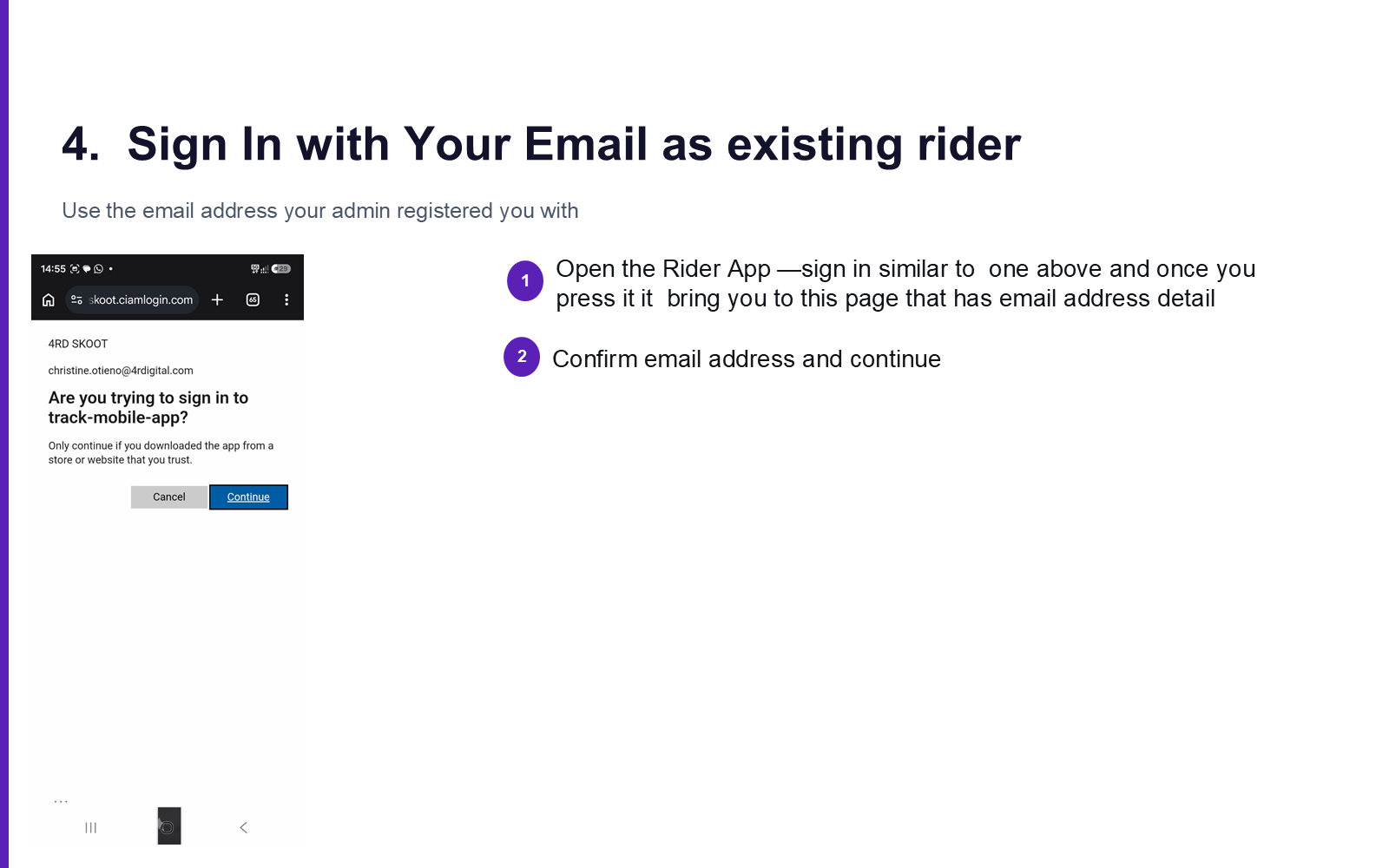
- Open the Rider App and tap sign in as above
- Confirm your email address and continue
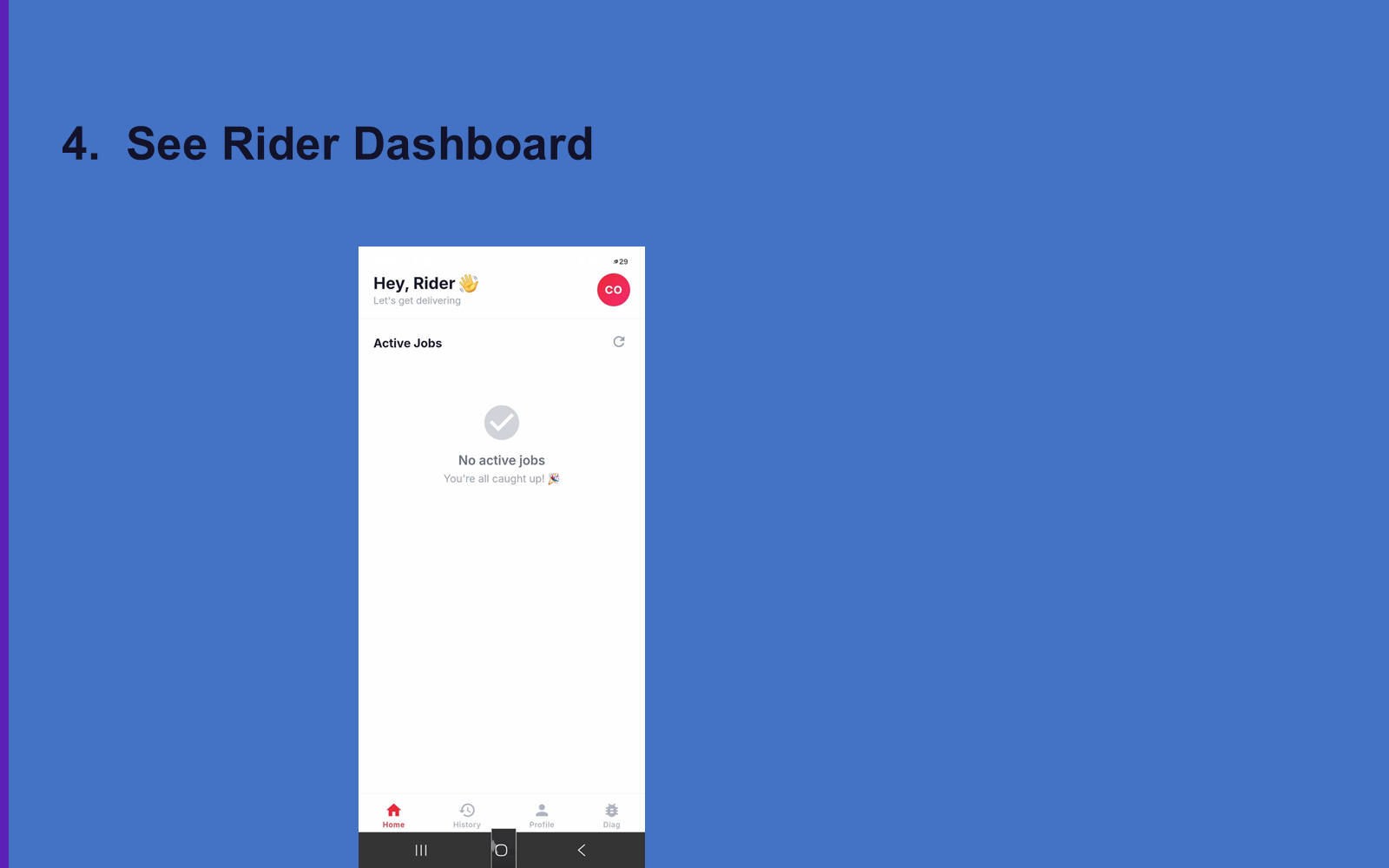
4. See Your Rider Dashboard
5. See Available Jobs in Your Area
Your job board shows nearby delivery requests waiting to be accepted.
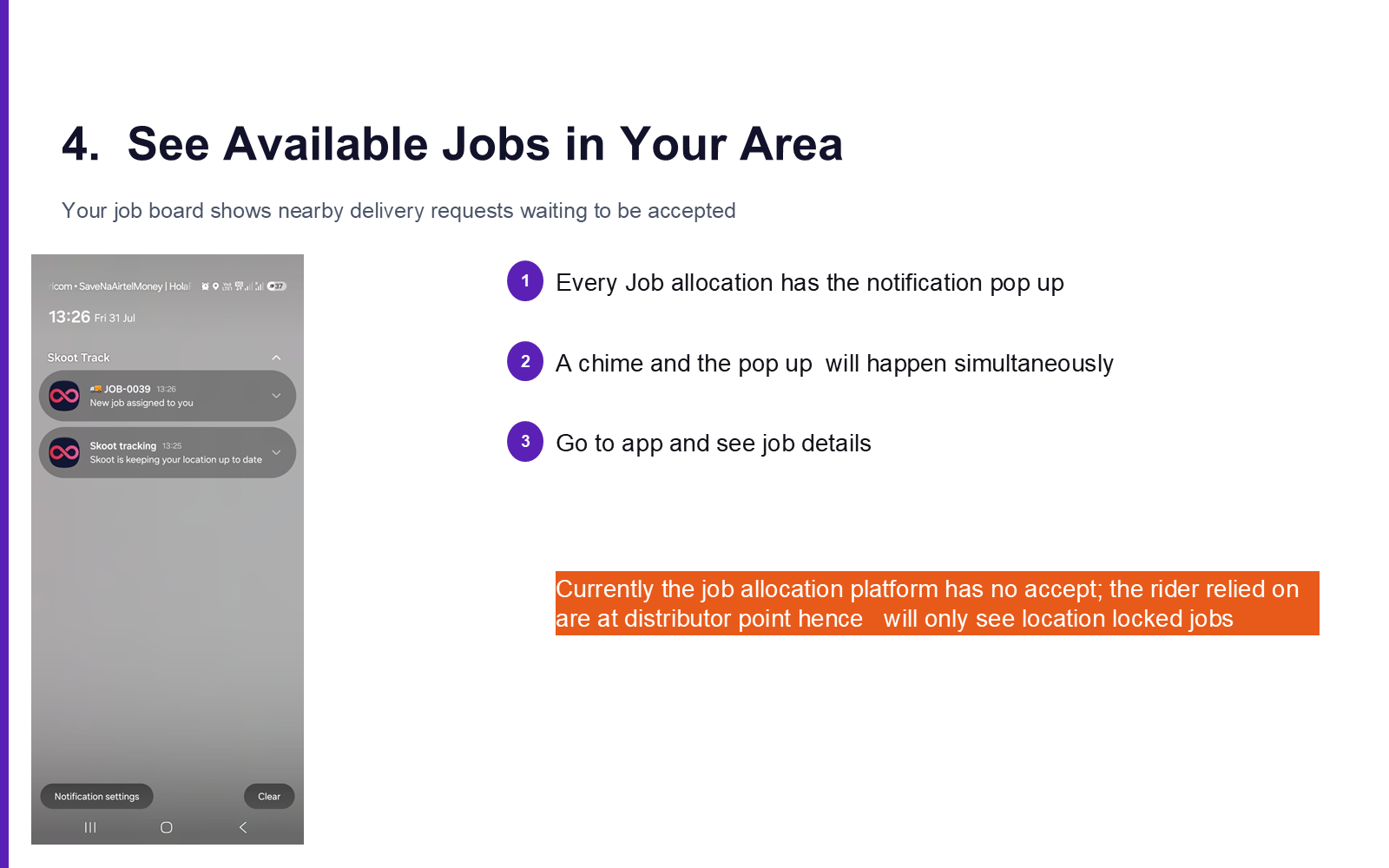
What you see:
- Every job allocation triggers a notification pop-up, with a chime and pop-up happening simultaneously
- Go to the app to see job details
Note
The job allocation platform currently has no "accept" step — riders rely on location-locked jobs at their distributor point.
Next: Delivery Flow →