Customer App: Ordering Flow
Choose gas · Pay · Confirm
1. Choose Gas Type
Browse available gas sizes and see live pricing.
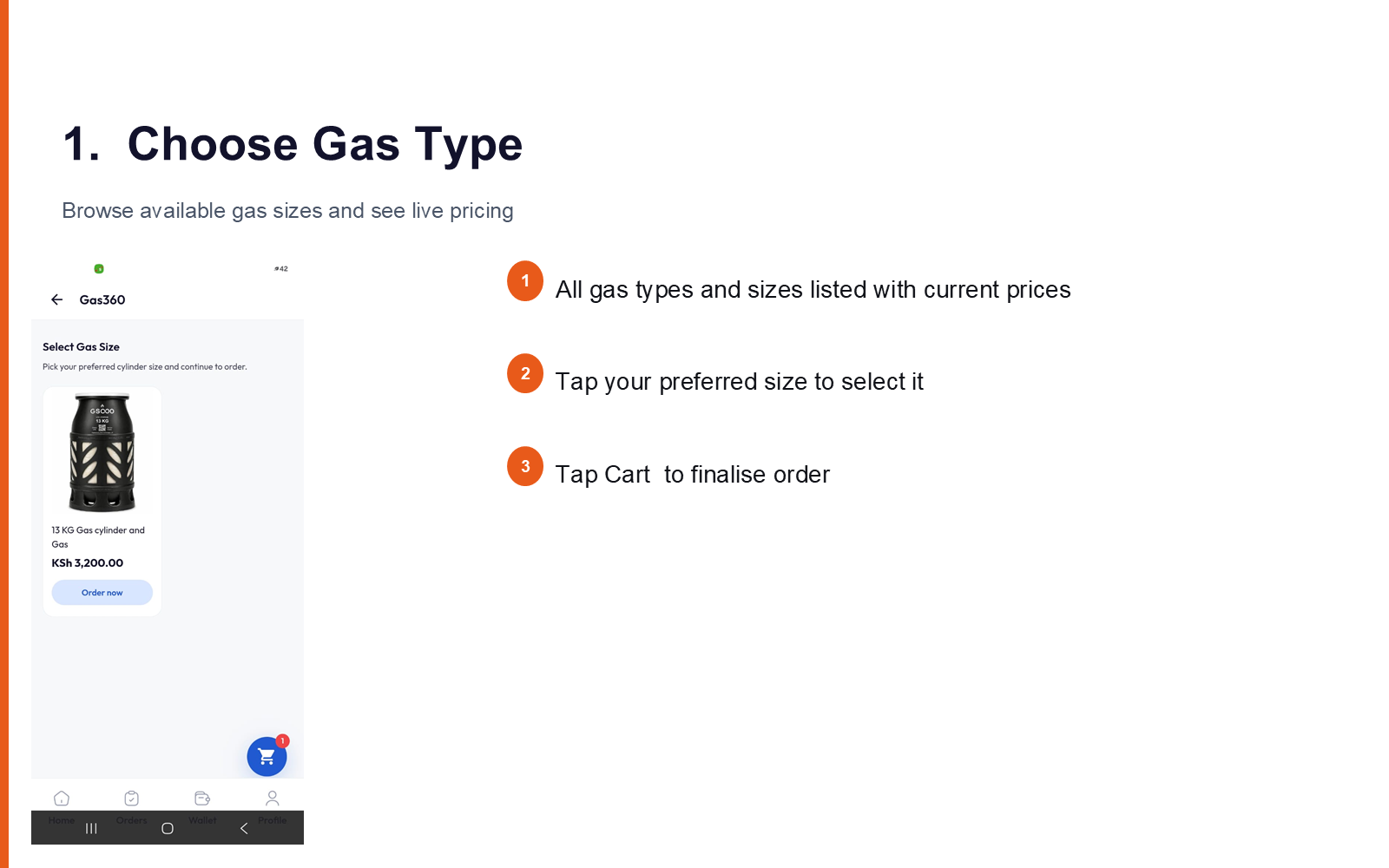
What you see:
- All gas types and sizes listed with current prices
- Tap your preferred size to select it
- Tap Cart to finalise your order
2. Add Address
Add your location to enable a smooth delivery.
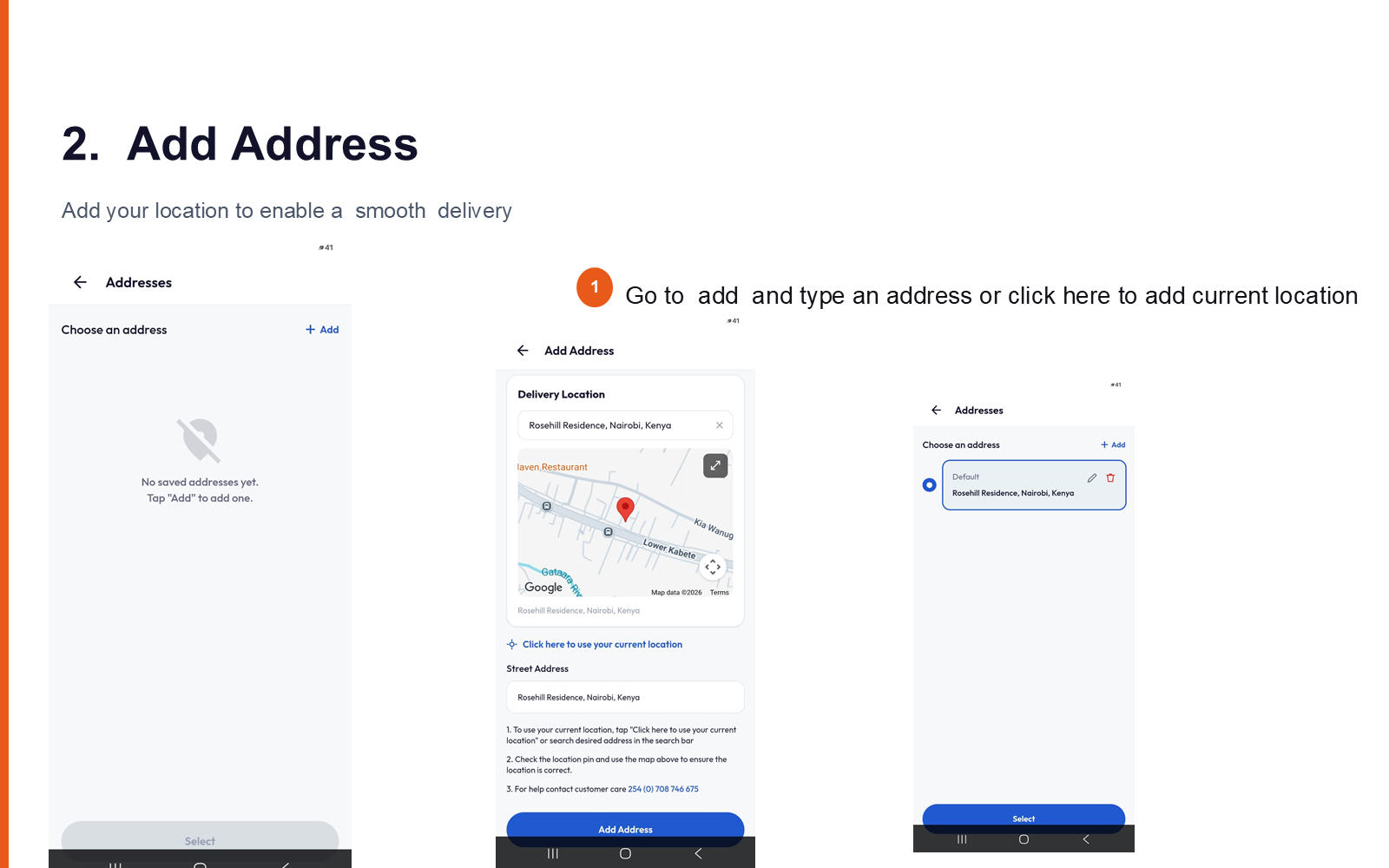
Go to Add and type an address, or tap to use your current location.
3. Review Your Order
Confirm what you are ordering before paying.
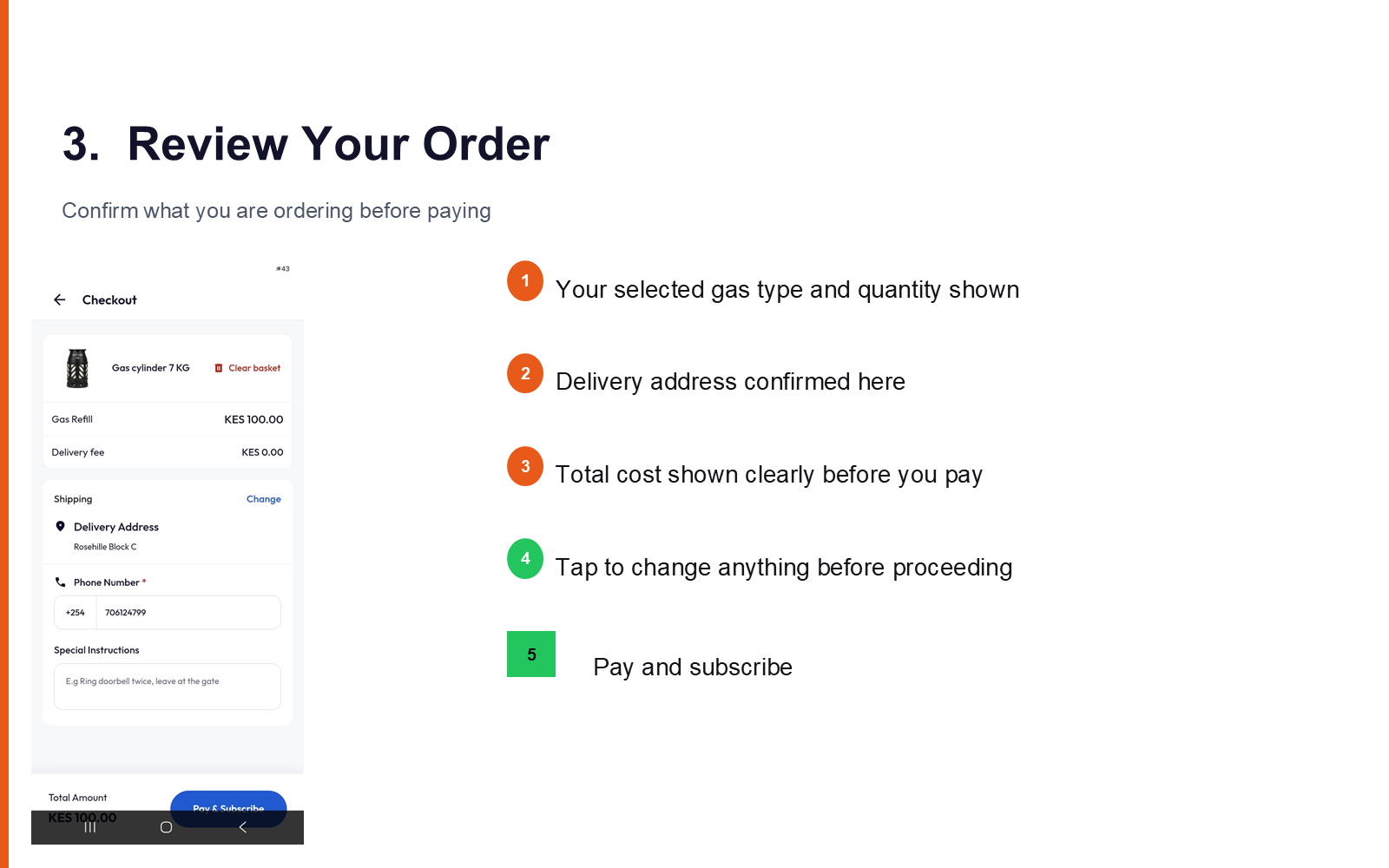
What you see:
- Your selected gas type and quantity shown
- Delivery address confirmed here
- Total cost shown clearly before you pay
- Tap to change anything before proceeding
- Tap Pay and Subscribe
4. Payment Prompt and Confirmation
Once you tap Pay and Subscribe, a payment prompt is shared.
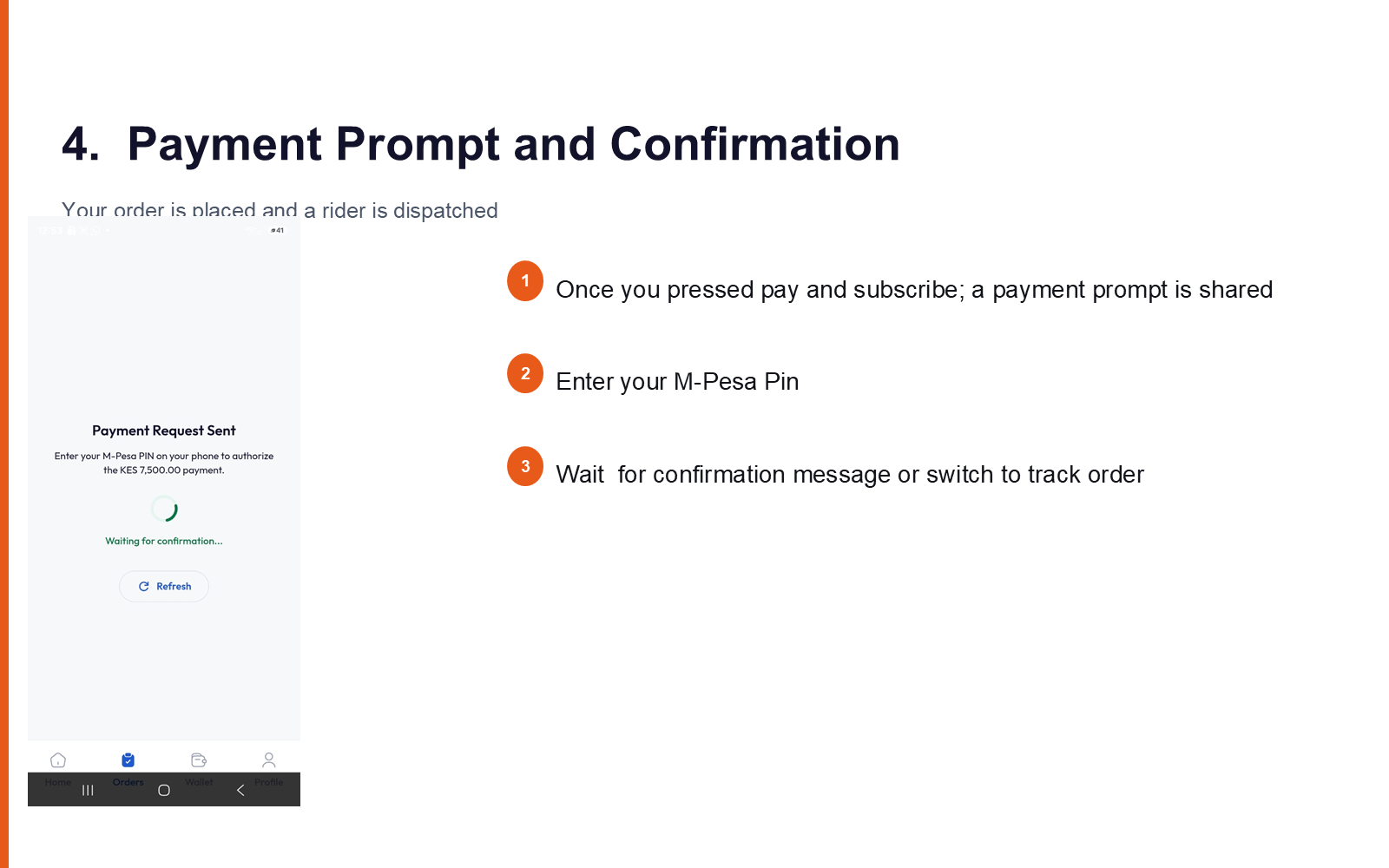
What you see:
- Payment prompt appears
- Enter your M-Pesa PIN
- Wait for the confirmation message, or switch to Track Order
5. Order Confirmed
Your order is placed and a rider is dispatched.
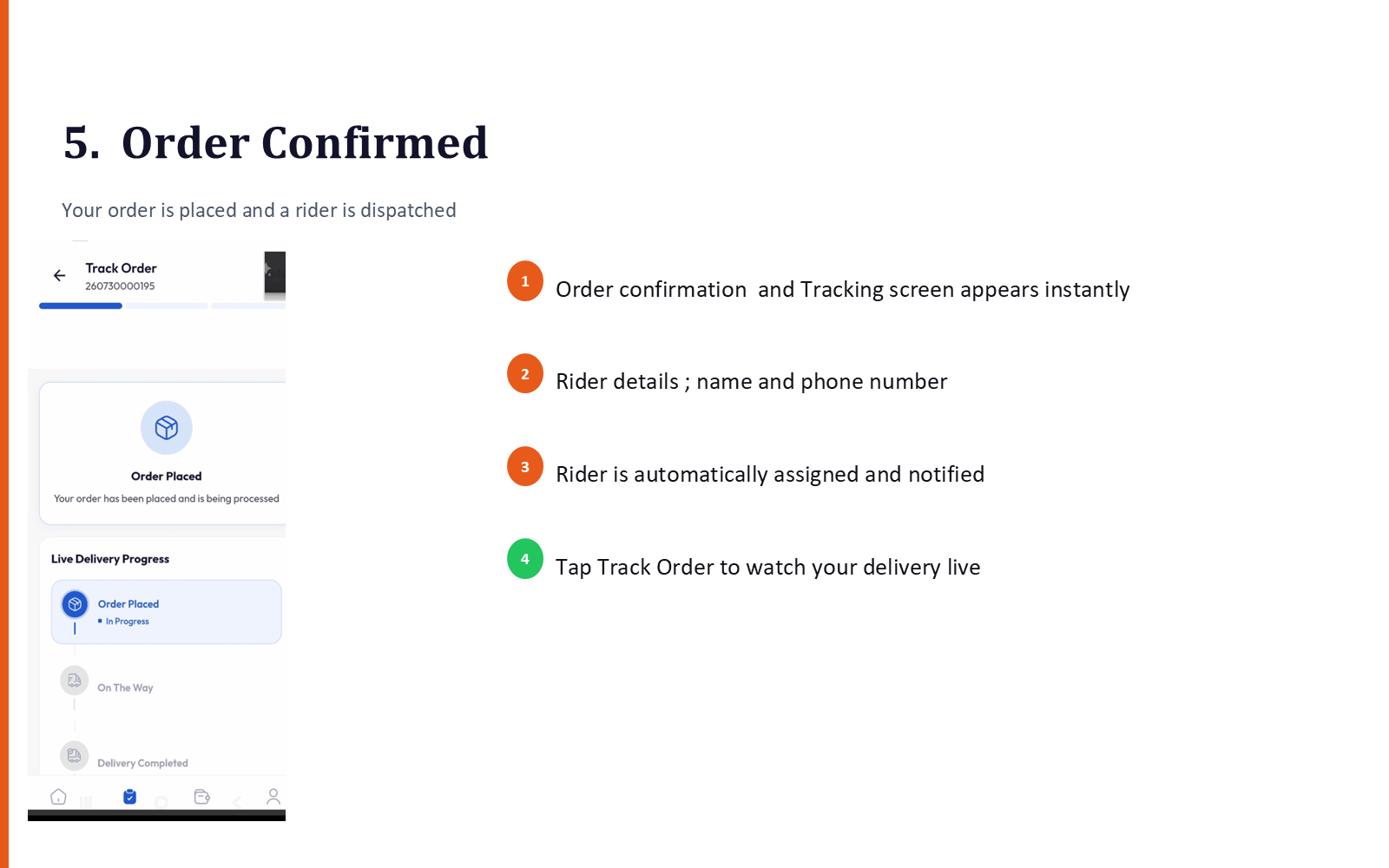
What you see:
- Order confirmation and tracking screen appears instantly
- Rider details — name and phone number
- Rider is automatically assigned and notified
- Tap Track Order to watch your delivery live
6. Track Delivery
Watch your order's progress in real time.
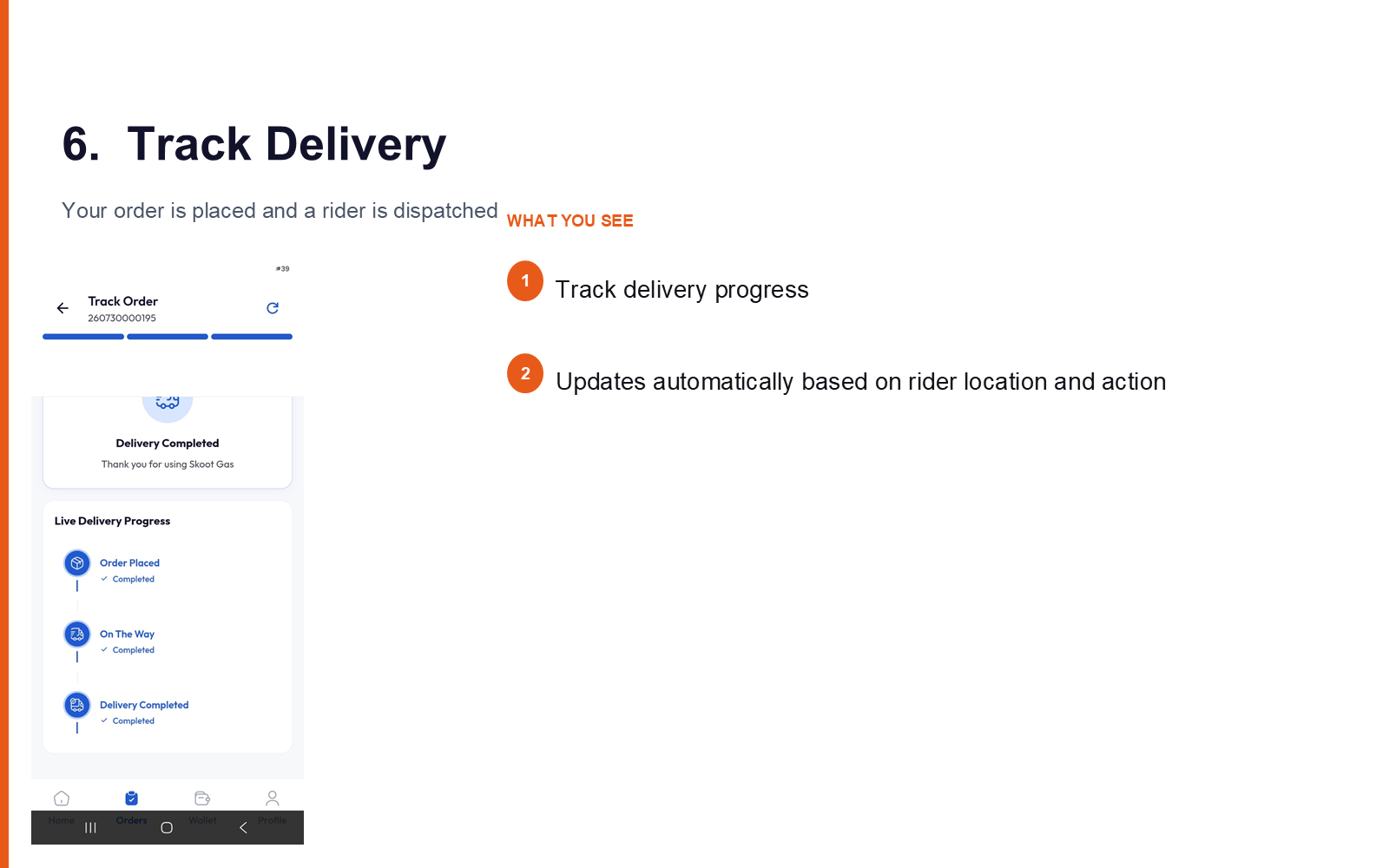
What you see:
- Track delivery progress
- Updates automatically based on rider location and action
7. Customer Tracks Usage
Once delivery is complete, the app updates your gas usage.
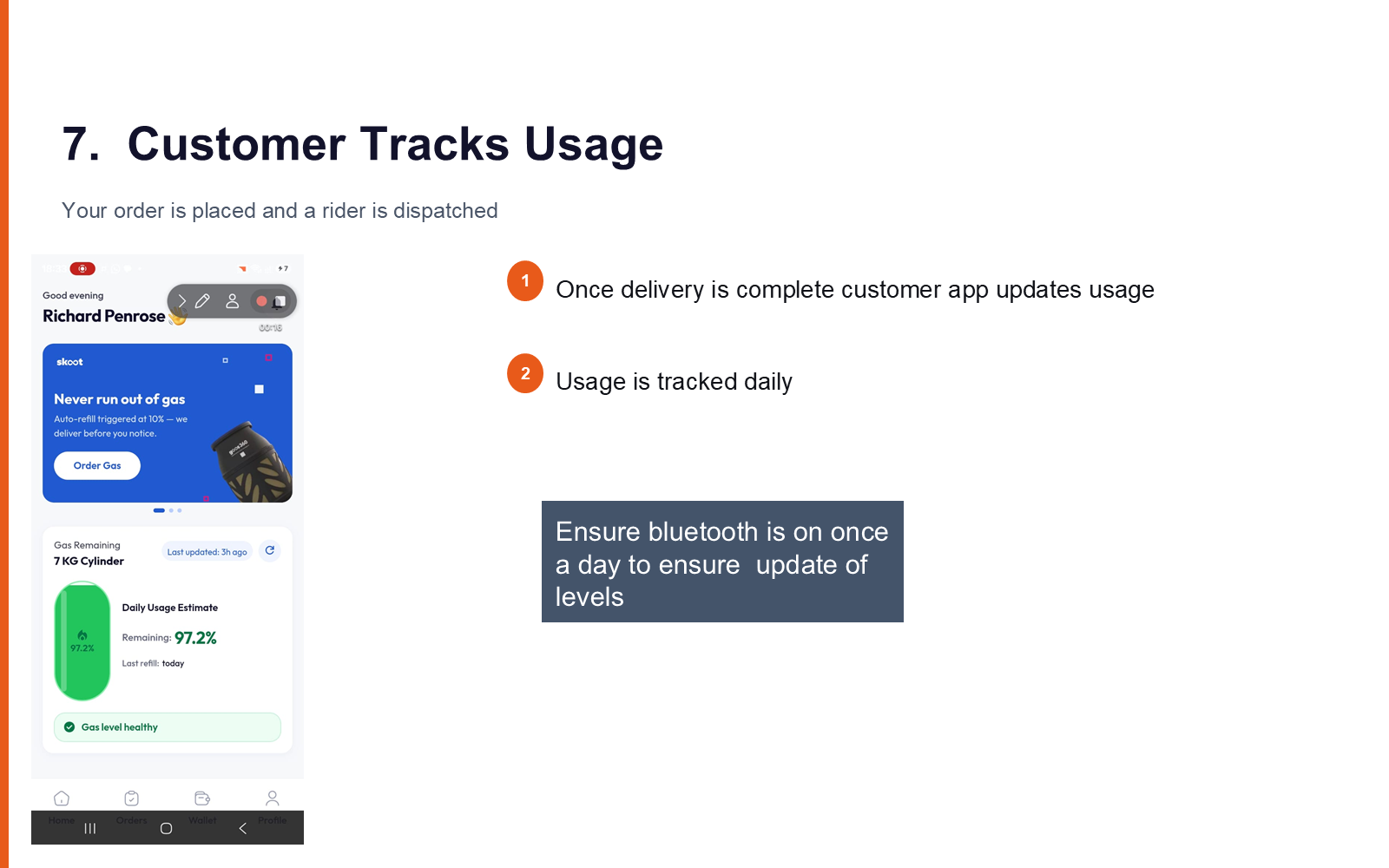
What you see:
- Usage is tracked daily
Tip
Ensure Bluetooth is on at least once a day so gas level readings keep updating.
8. Refill Notifications
Automatic refill prompts before you run out.
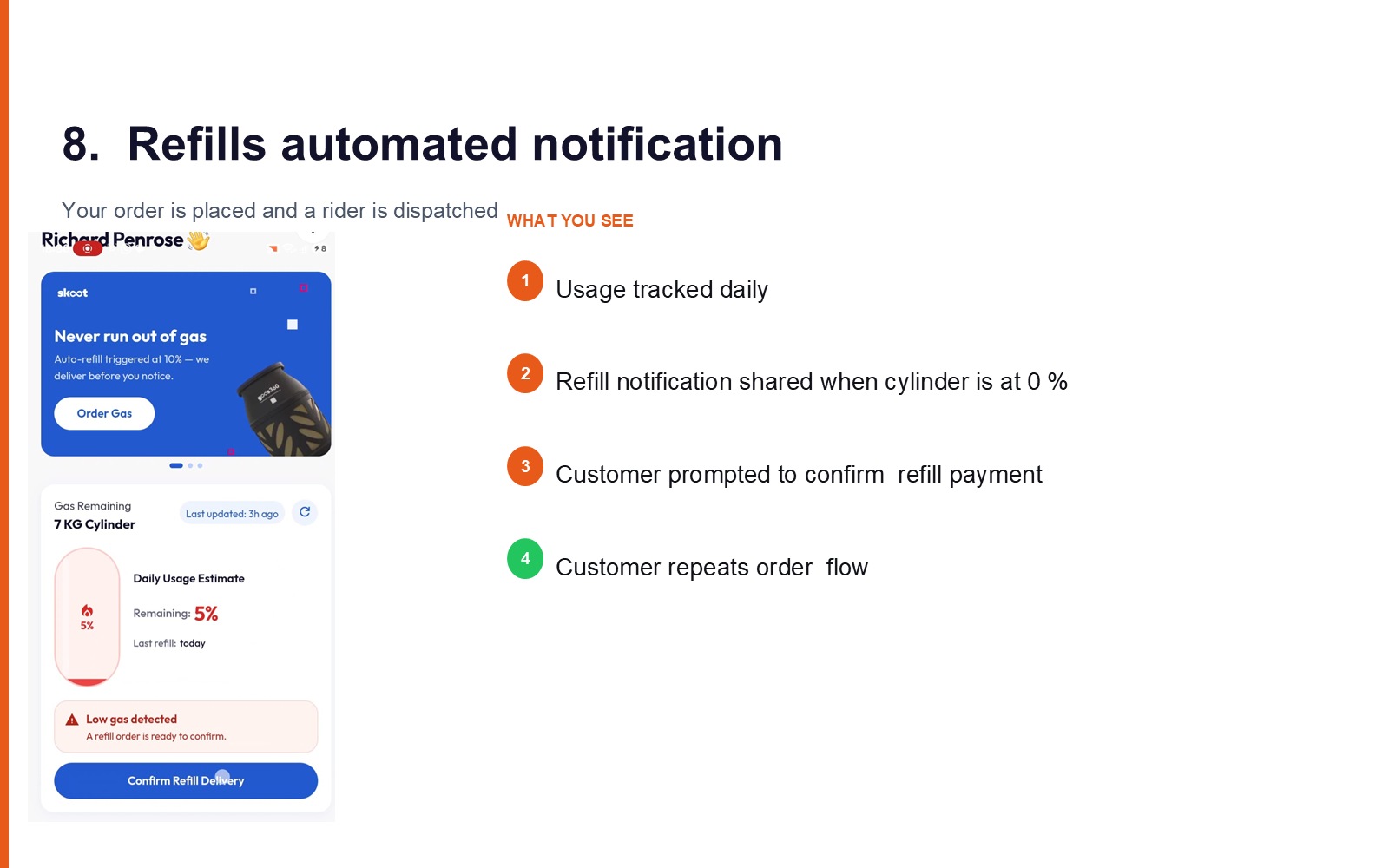
What you see:
- Usage tracked daily
- Refill notification shared when cylinder is at 0%
- Customer prompted to confirm refill payment
- Customer repeats the order flow