Rider App: Delivery Flow
From job acceptance to closing — step by step
1. See the Job & Accept
A new job appears on your screen — review it then tap Accept.
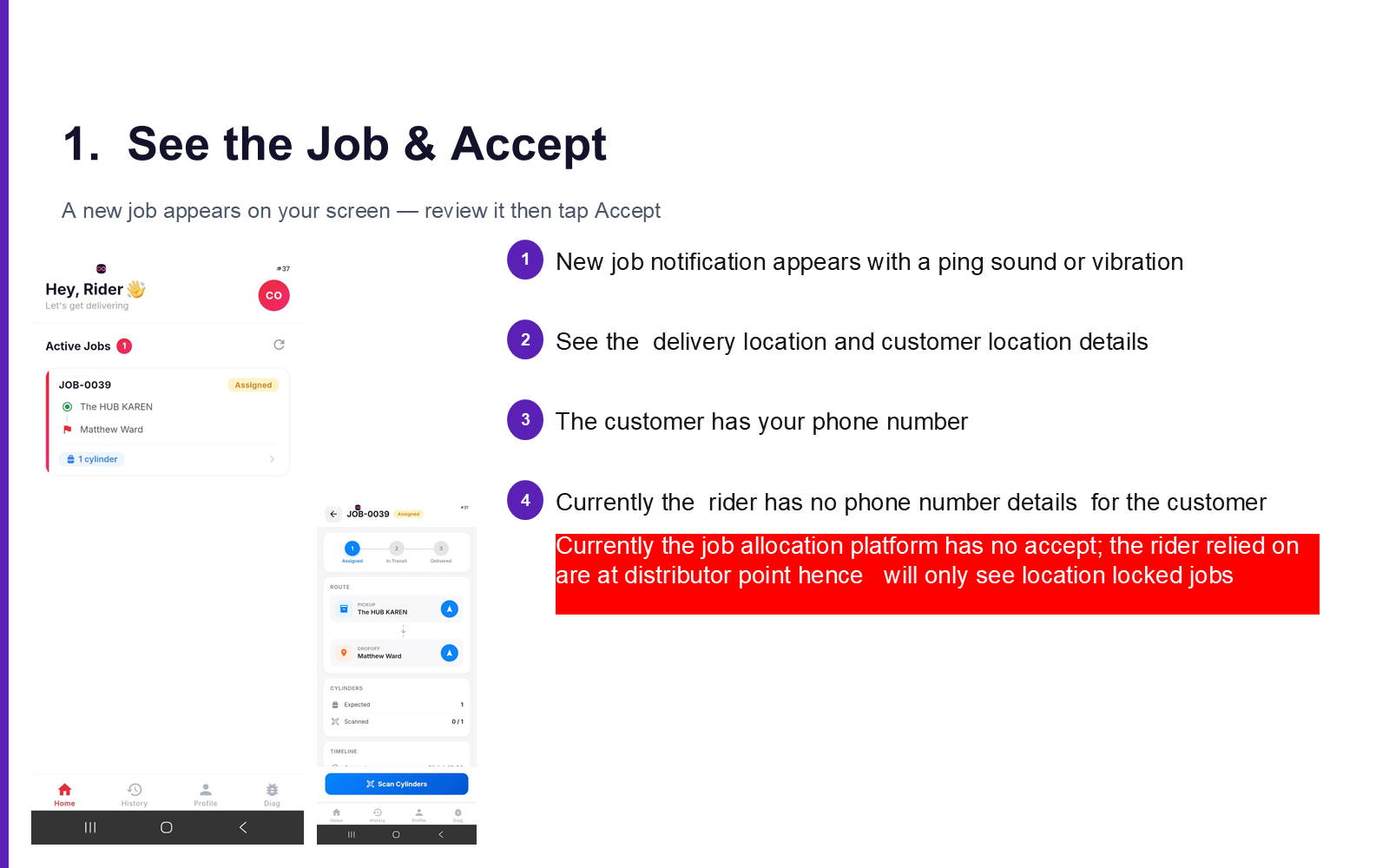
What you see:
- New job notification appears with a ping sound or vibration
- See the delivery location and customer location details
Note
The customer has your phone number, but currently the rider does not have the customer's phone number details. The job allocation platform currently has no "accept" step — riders rely on location-locked jobs at their distributor point.
2. Go to Depot — Route Depends on Rider Type
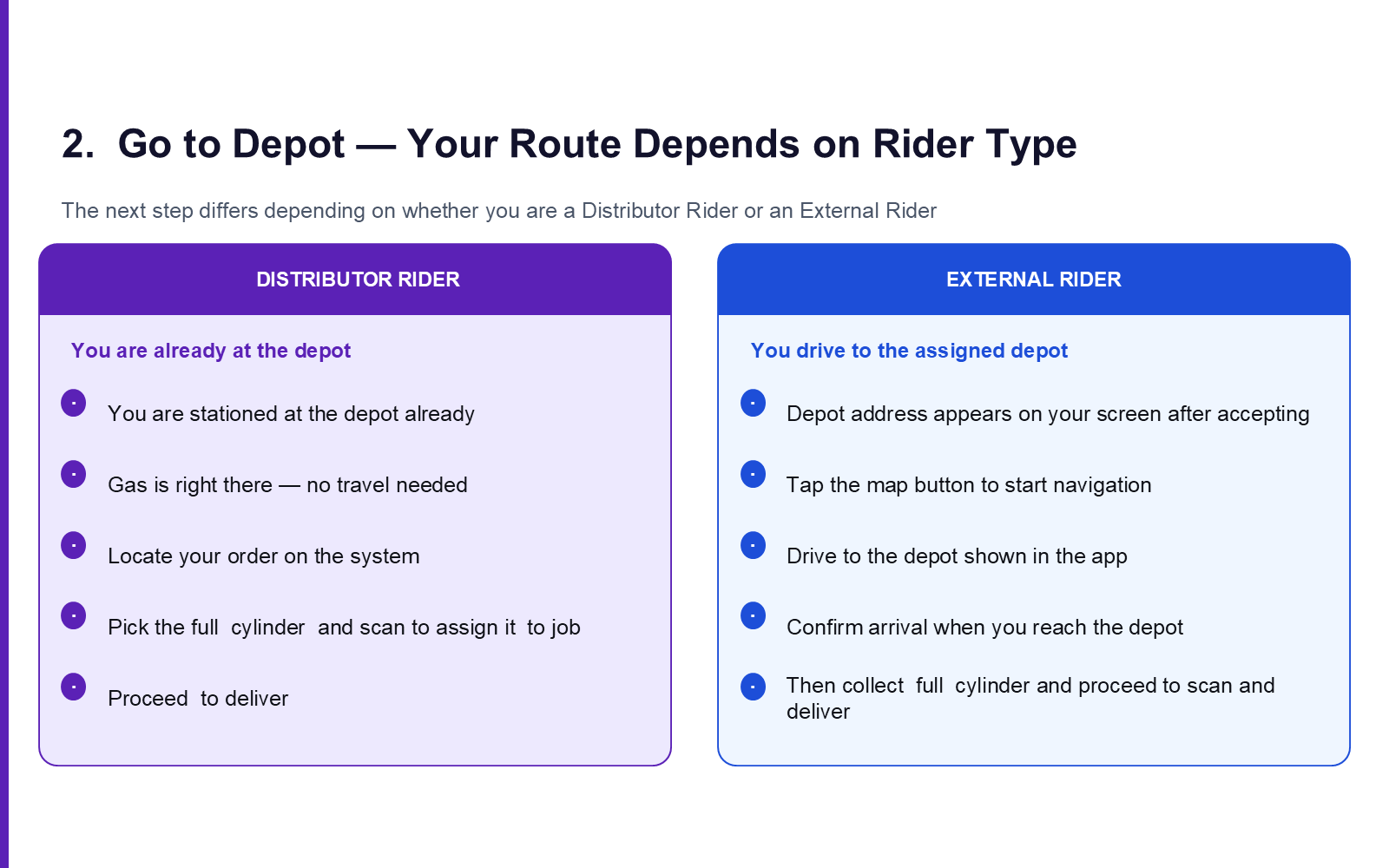
The next step differs depending on whether you are a Distributor Rider or an External Rider.
| Distributor Rider | External Rider | |
|---|---|---|
| Starting point | You are already at the depot | You drive to the assigned depot |
| Step 1 | Depot address appears on your screen after accepting | Tap the map button to start navigation |
| Step 2 | Gas is right there — no travel needed | Locate your order on the system |
| Step 3 | Pick the full cylinder and scan to assign it to the job | Drive to the depot shown in the app |
| Step 4 | Proceed to deliver | Confirm arrival when you reach the depot, then collect the full cylinder and proceed to scan and deliver |
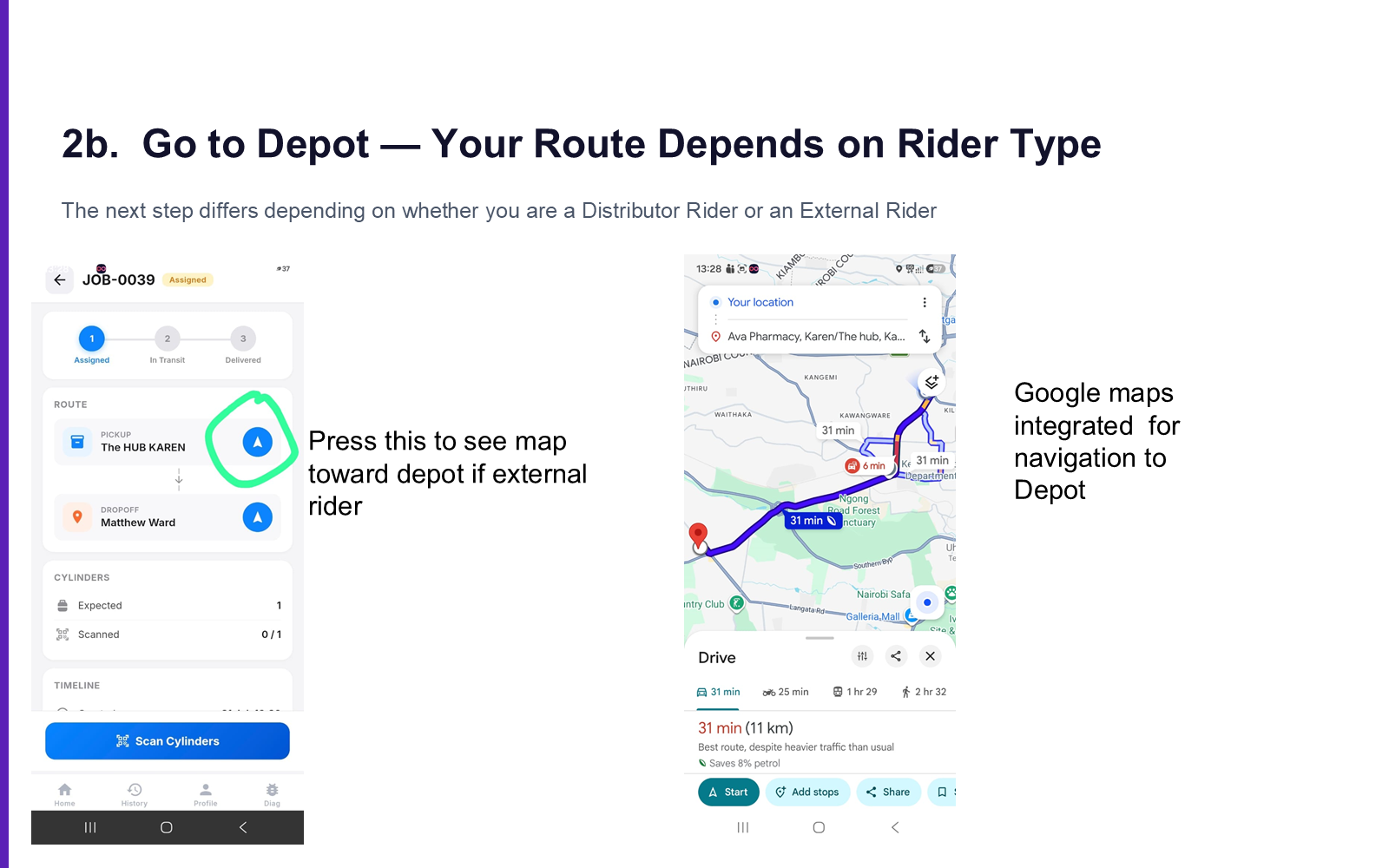
Google Maps is integrated for navigation to the depot — tap the map button to launch it if you're an external rider.
3. Scan Cylinder at Depot
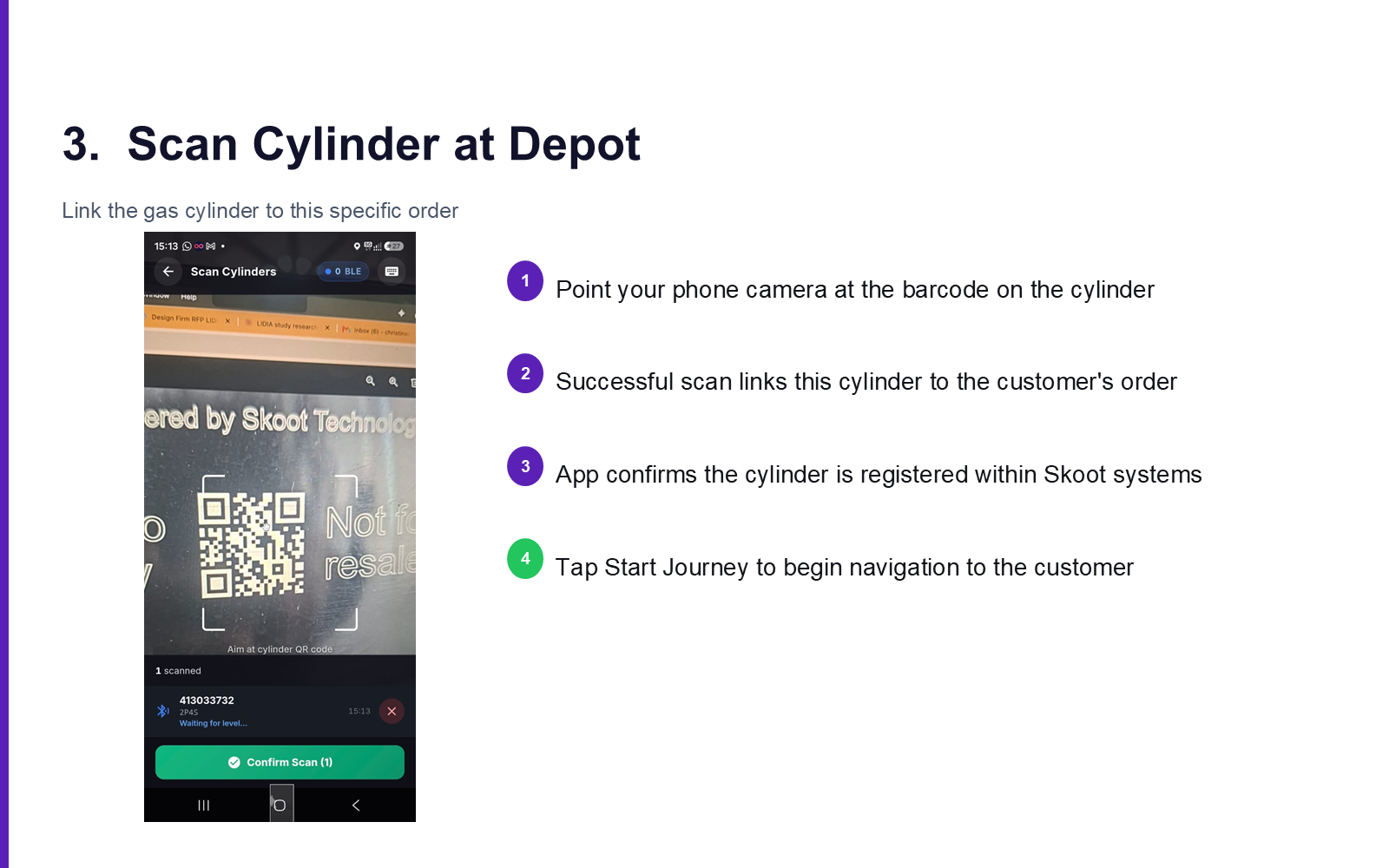
Link the gas cylinder to this specific order.
What you see:
- Point your phone camera at the barcode on the cylinder
- Successful scan links this cylinder to the customer's order
- App confirms the cylinder is registered within Skoot systems
- Tap Start Journey to begin navigation to the customer
4. Navigate to Customer
Turn-by-turn navigation to the delivery address.
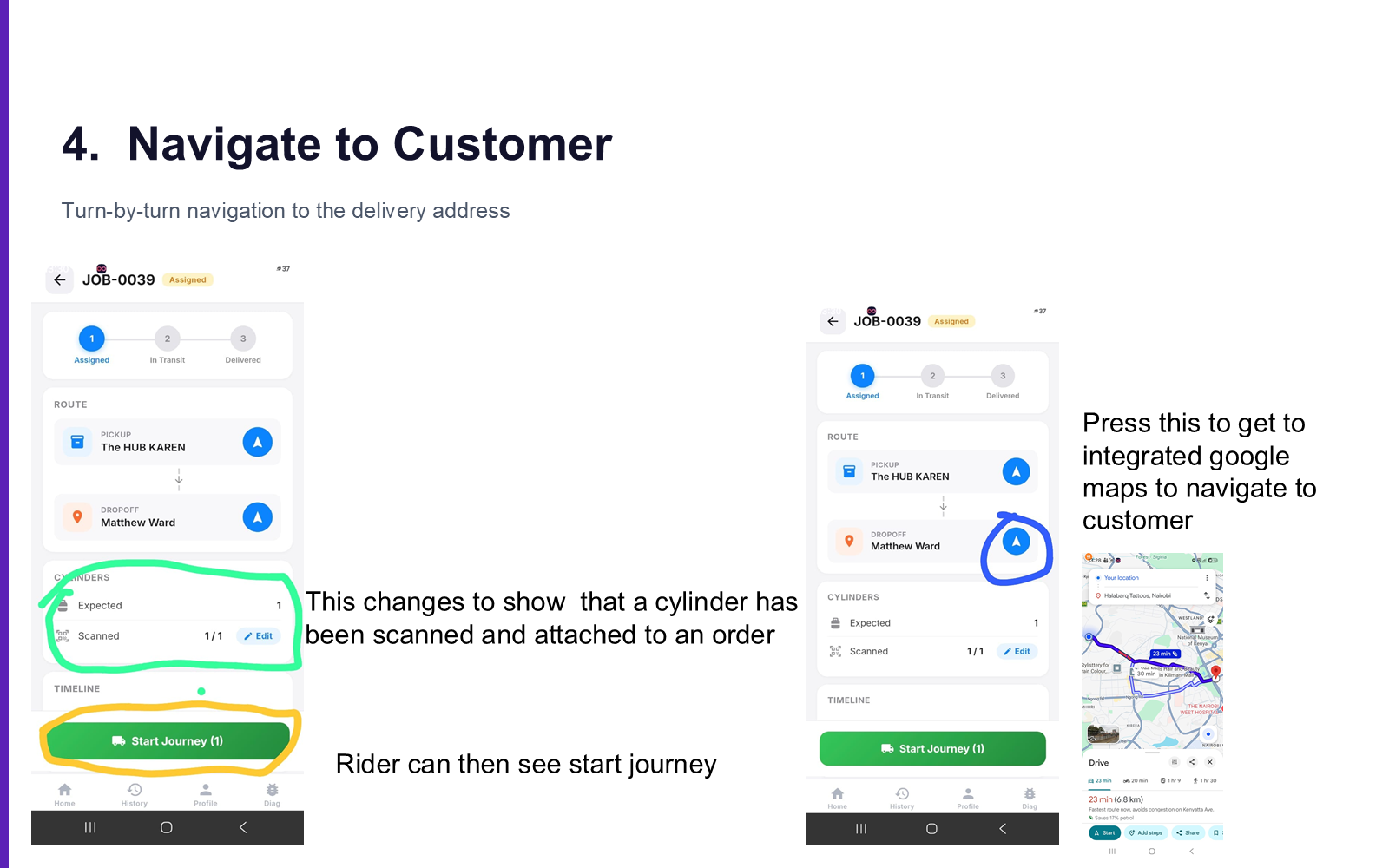
- Tap through to integrated Google Maps navigation to the customer
- The screen updates to show that a cylinder has been scanned and attached to an order
- Rider can then tap Start Journey
5. Deliver — Scan & Complete Delivery
Confirm the delivery of the full cylinder.
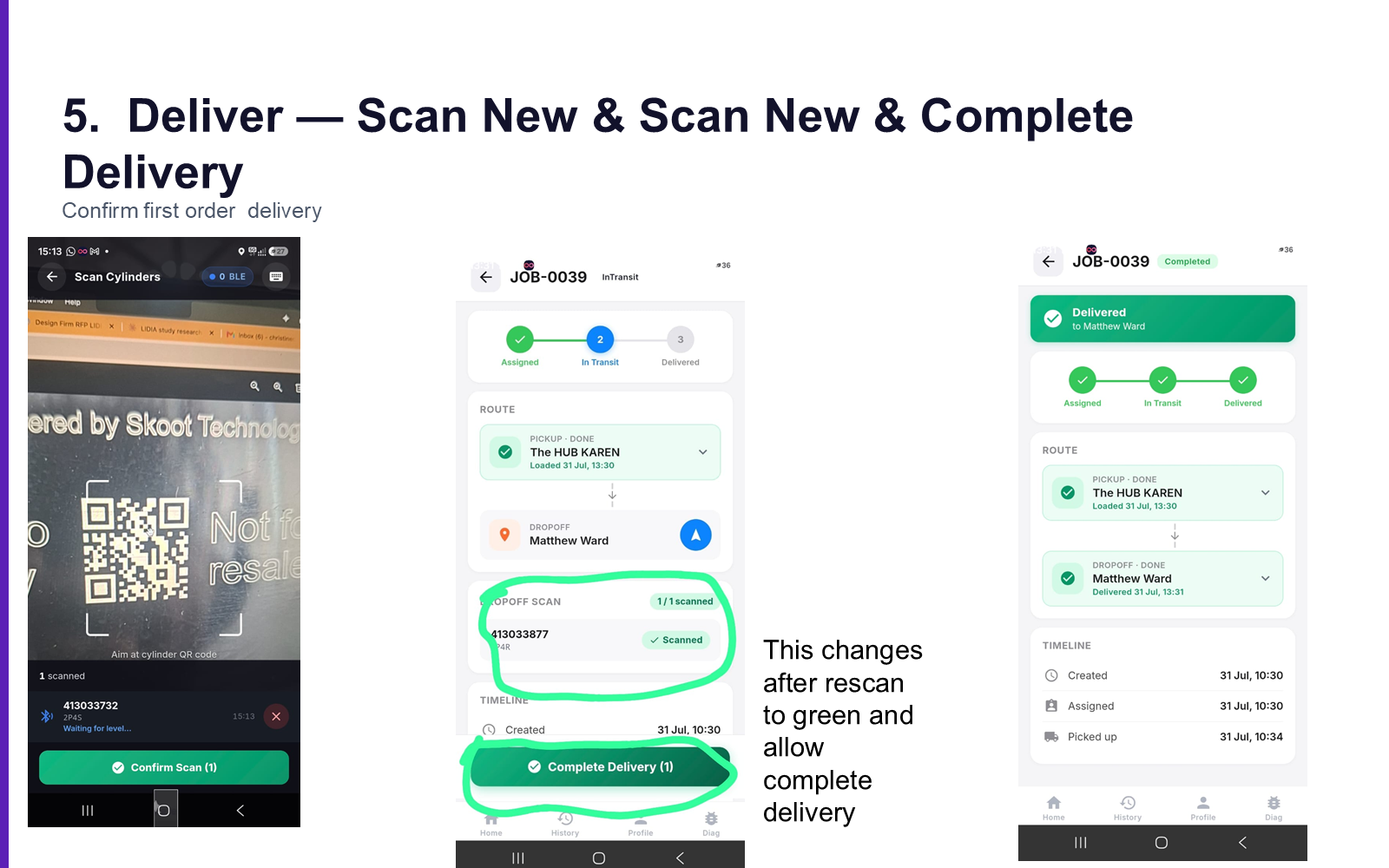
After rescanning, the screen changes to green and allows you to complete the delivery.
6. Return Empty & Close Job
Return the empty cylinder to the depot and end your job.
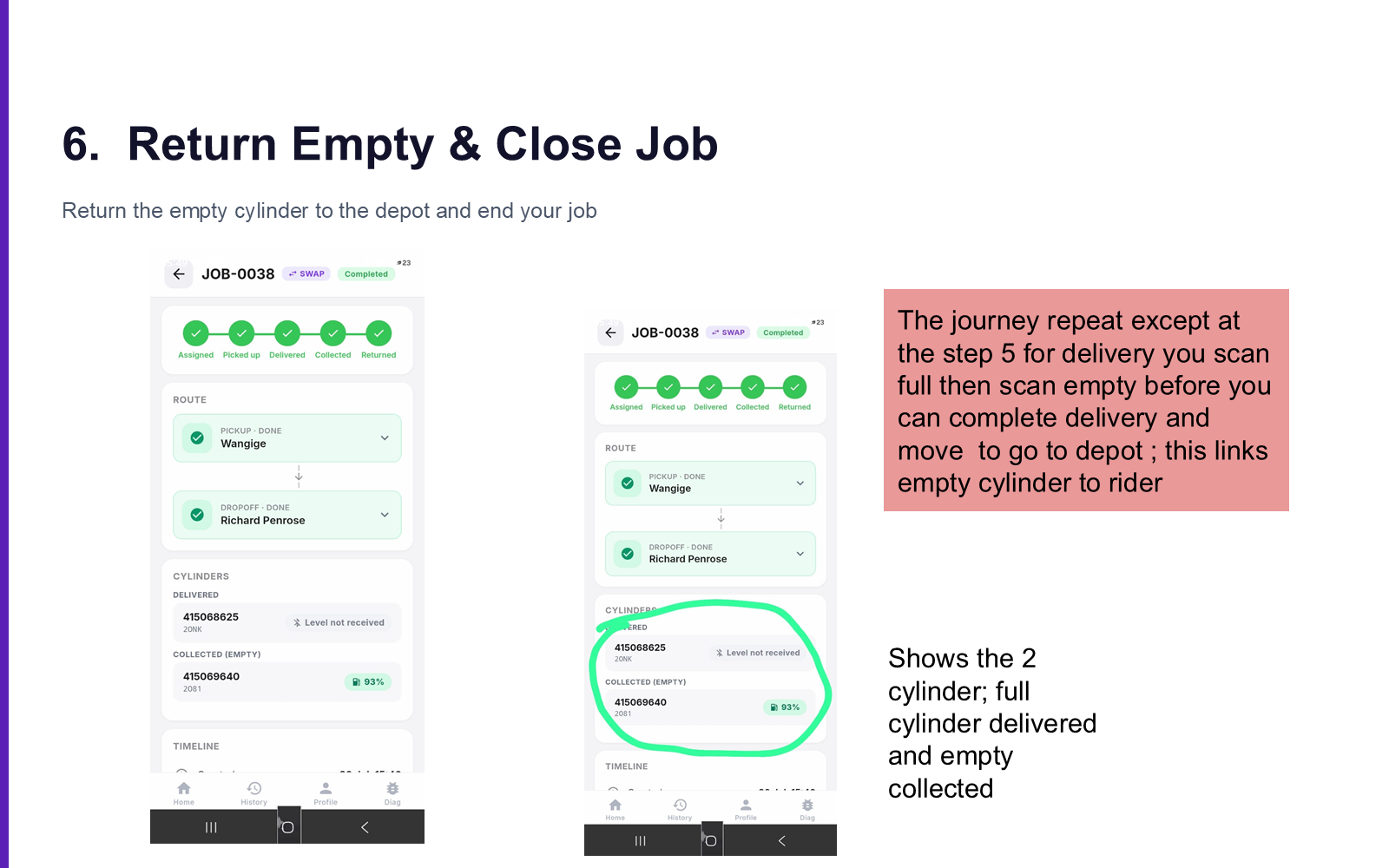
The journey repeats, except at the delivery step you scan the full cylinder, then scan the empty cylinder before you can complete delivery and move to "go to depot" — this links the empty cylinder to the rider. The screen shows both cylinders: the full one delivered and the empty one collected.
Next: Quick Reference →