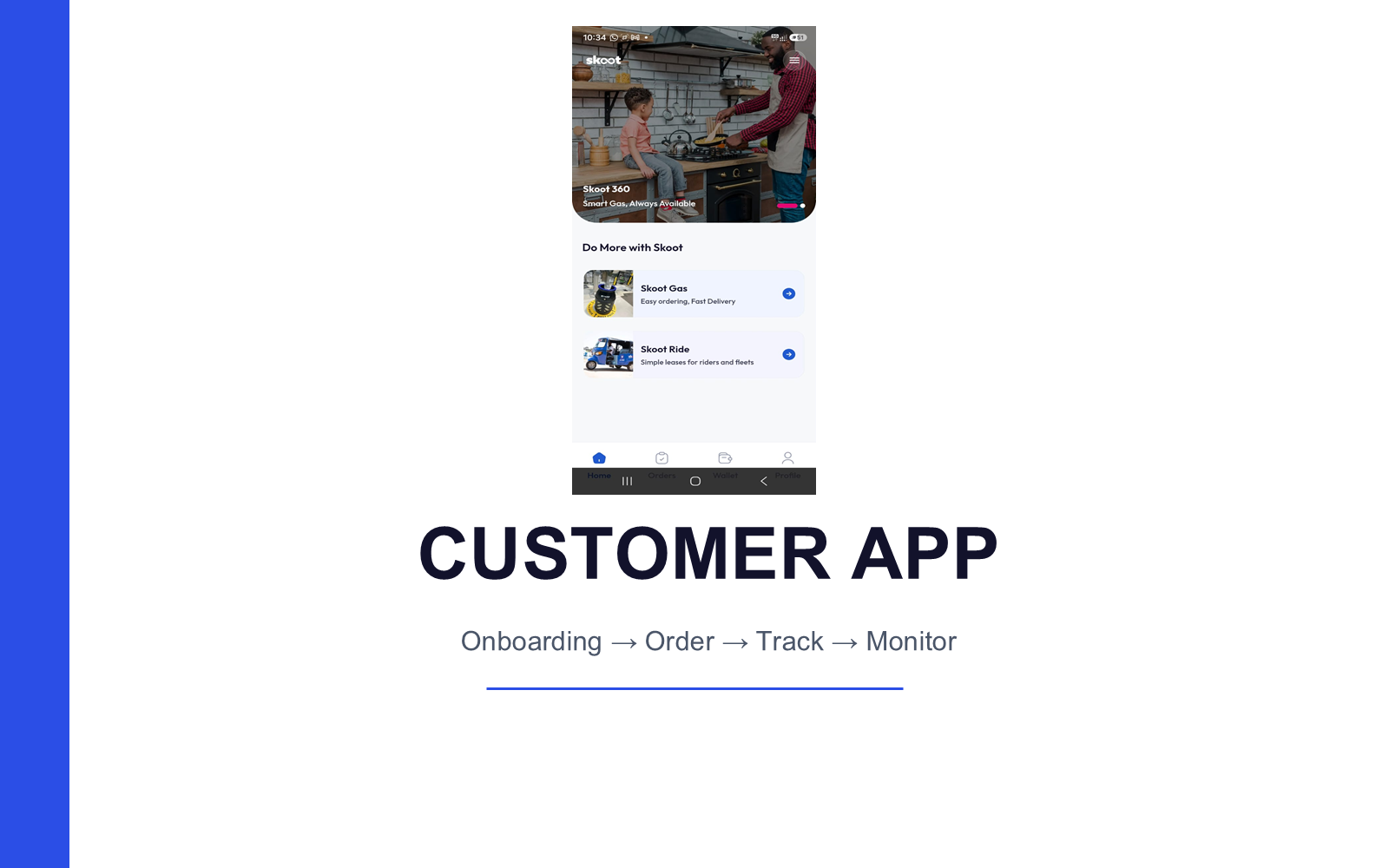
Customer App: Onboarding
Onboarding → Order → Track → Monitor
1. Welcome to Gas360
The app opens with the Skoot splash screen.
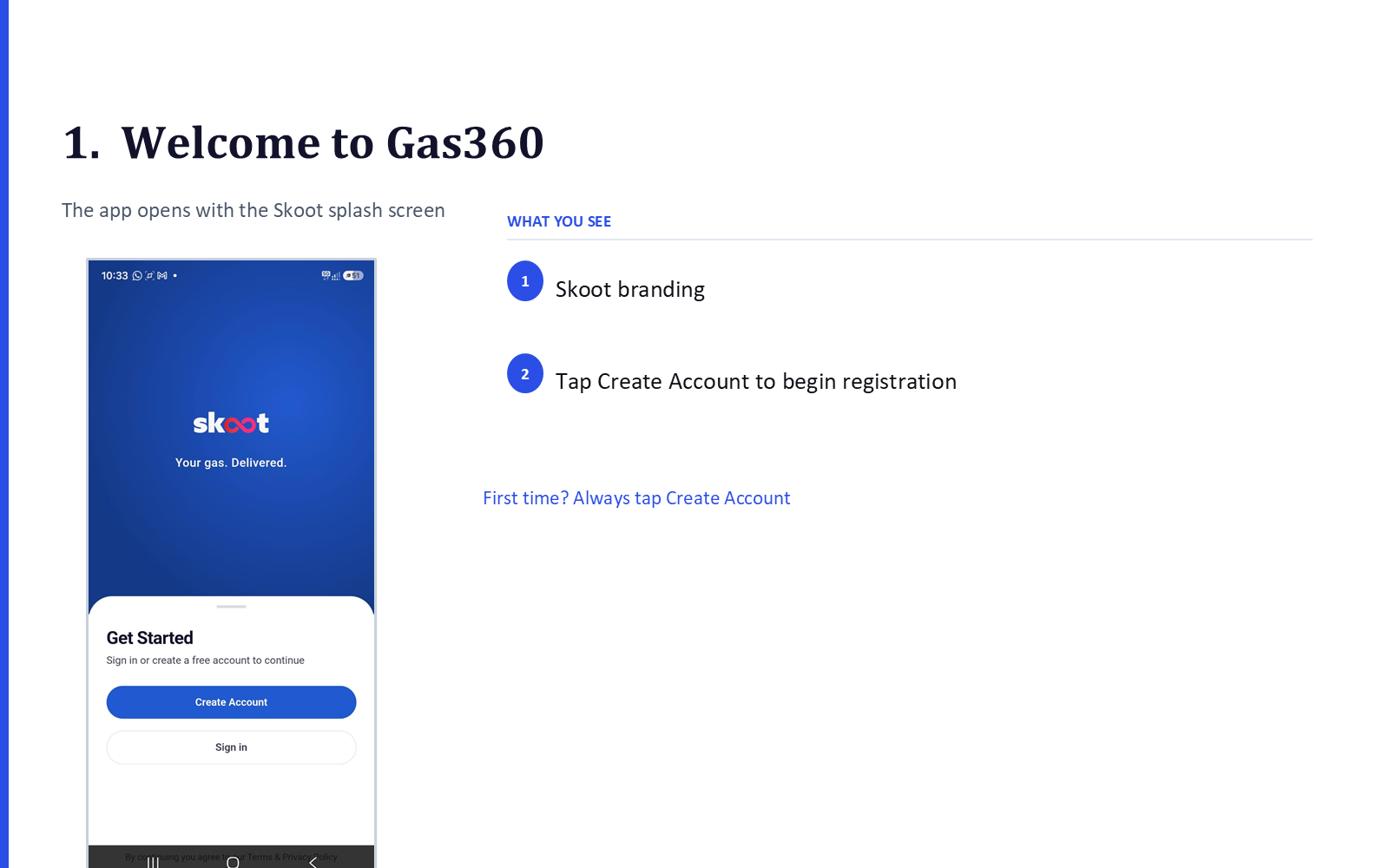
What you see:
- Skoot branding
- Tap Create Account to begin registration
Tip
First time? Always tap Create Account.
2. Download the Customer App
Android: Search "Skoot Customer" on the Play Store.
iPhone: Not currently supported — use the web app with a 4G-enabled cylinder instead.
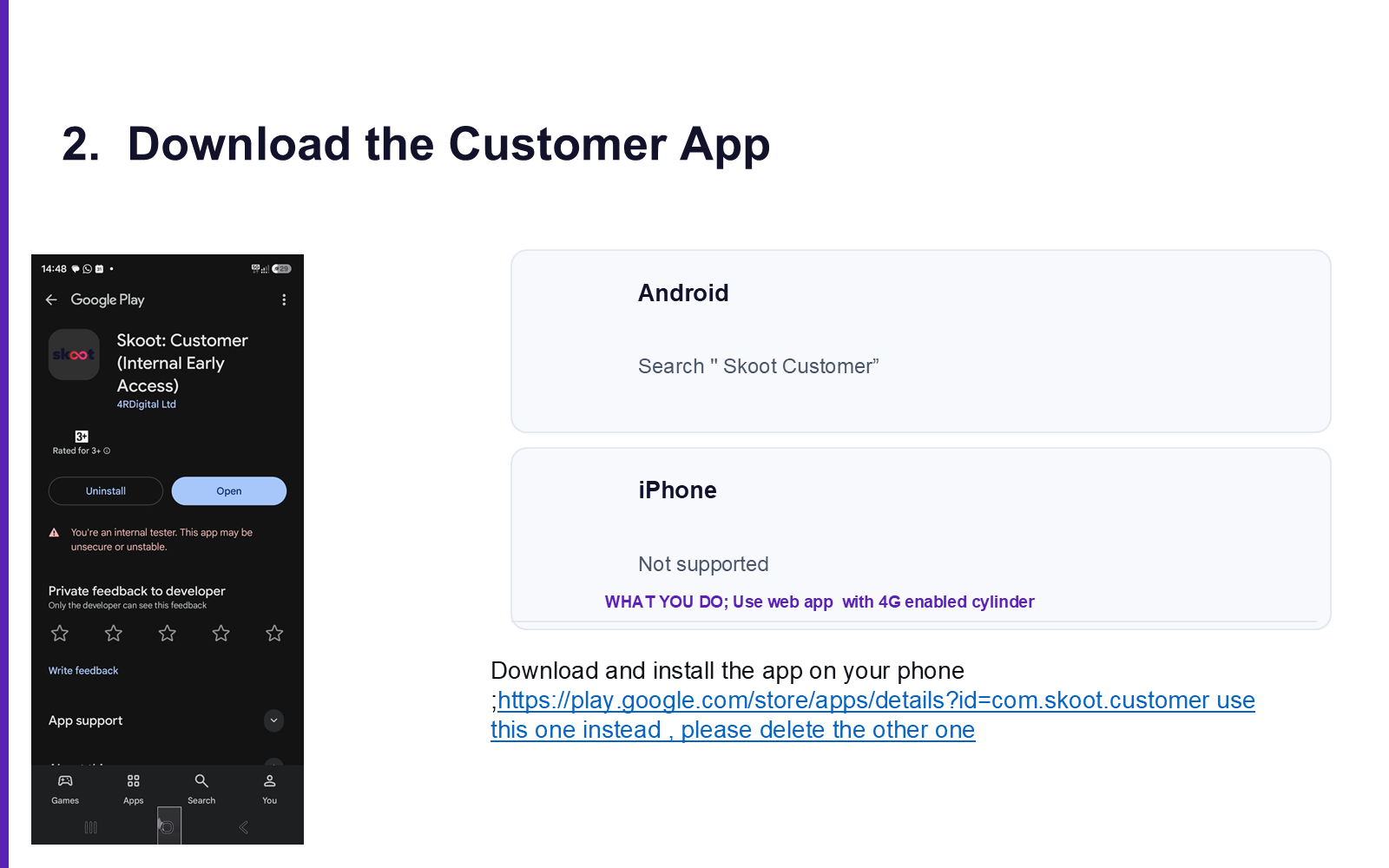
Download link: play.google.com/store/apps/details?id=com.skoot.customer
3. Create Your Account
Fill in your details to get started.
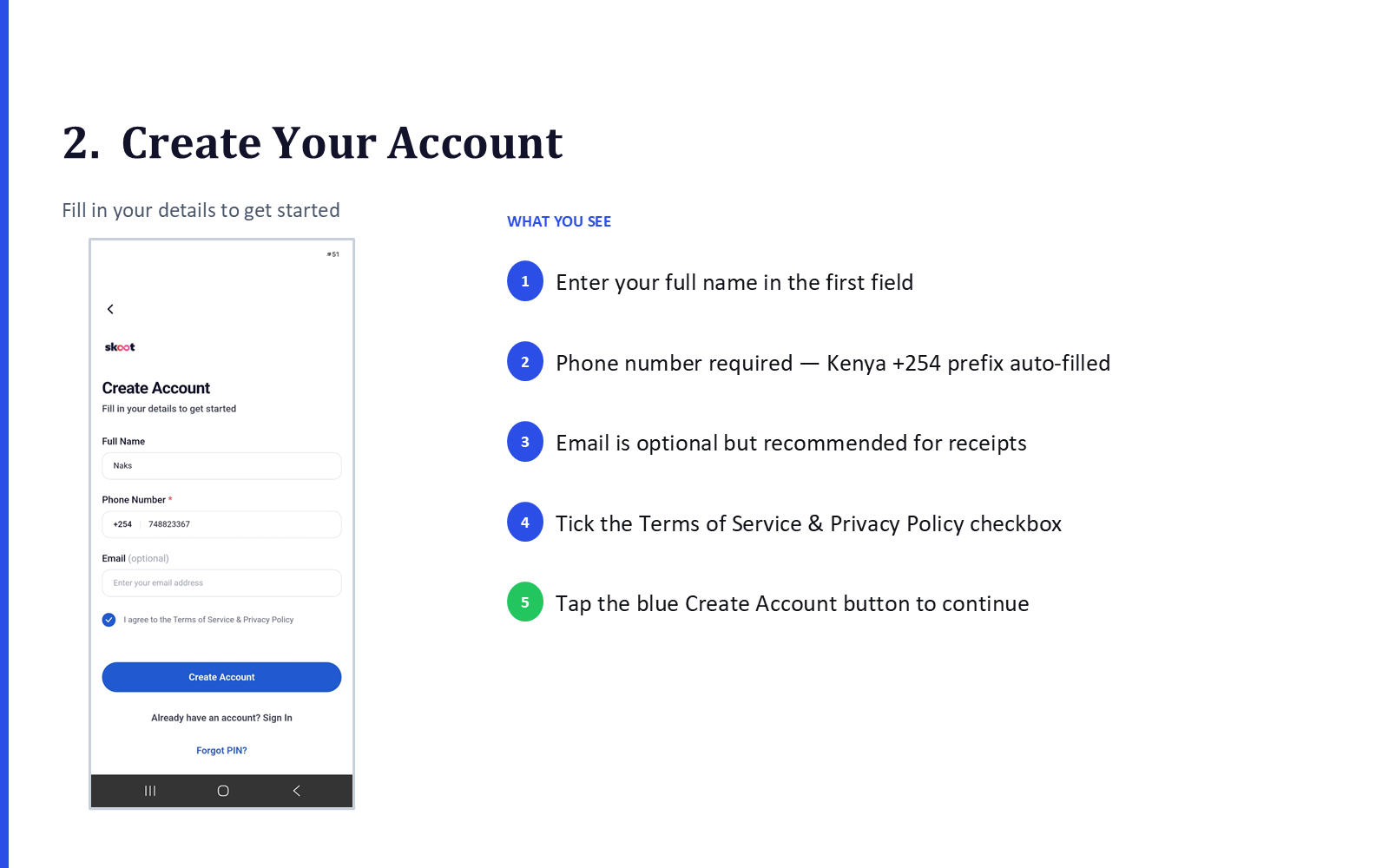
What you see:
- Enter your full name in the first field
- Phone number required — Kenya +254 prefix auto-filled
- Email is optional but recommended for receipts
- Tick the Terms of Service & Privacy Policy checkbox
- Tap the blue Create Account button to continue
4. Verify Your Phone Number
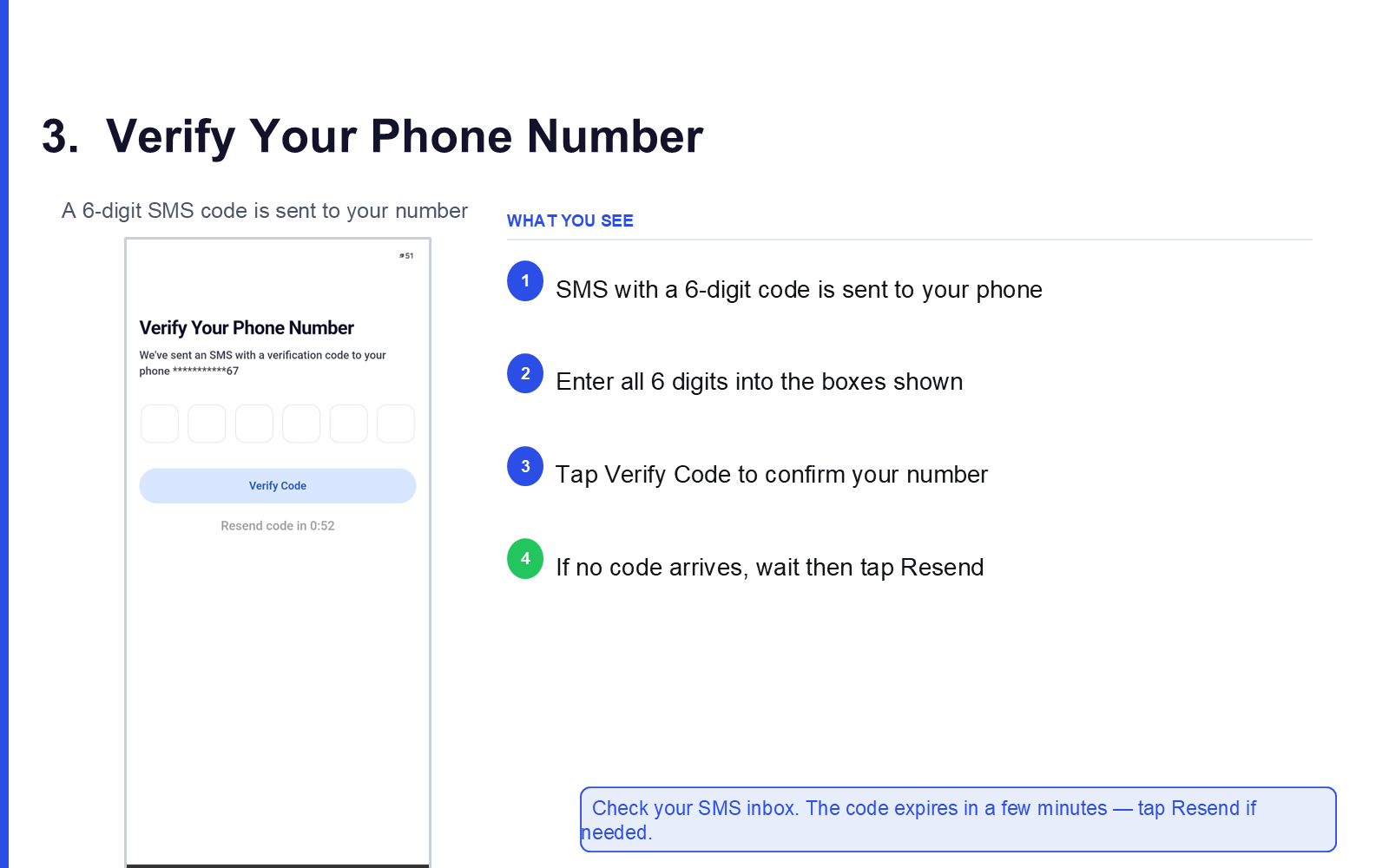
A 6-digit SMS code is sent to your number.
What you see:
- SMS with a 6-digit code is sent to your phone
- Enter all 6 digits into the boxes shown
- Tap Verify Code to confirm your number
- If no code arrives, wait then tap Resend
Tip
Check your SMS inbox. The code expires in a few minutes — tap Resend if needed.
5. Create Your PIN
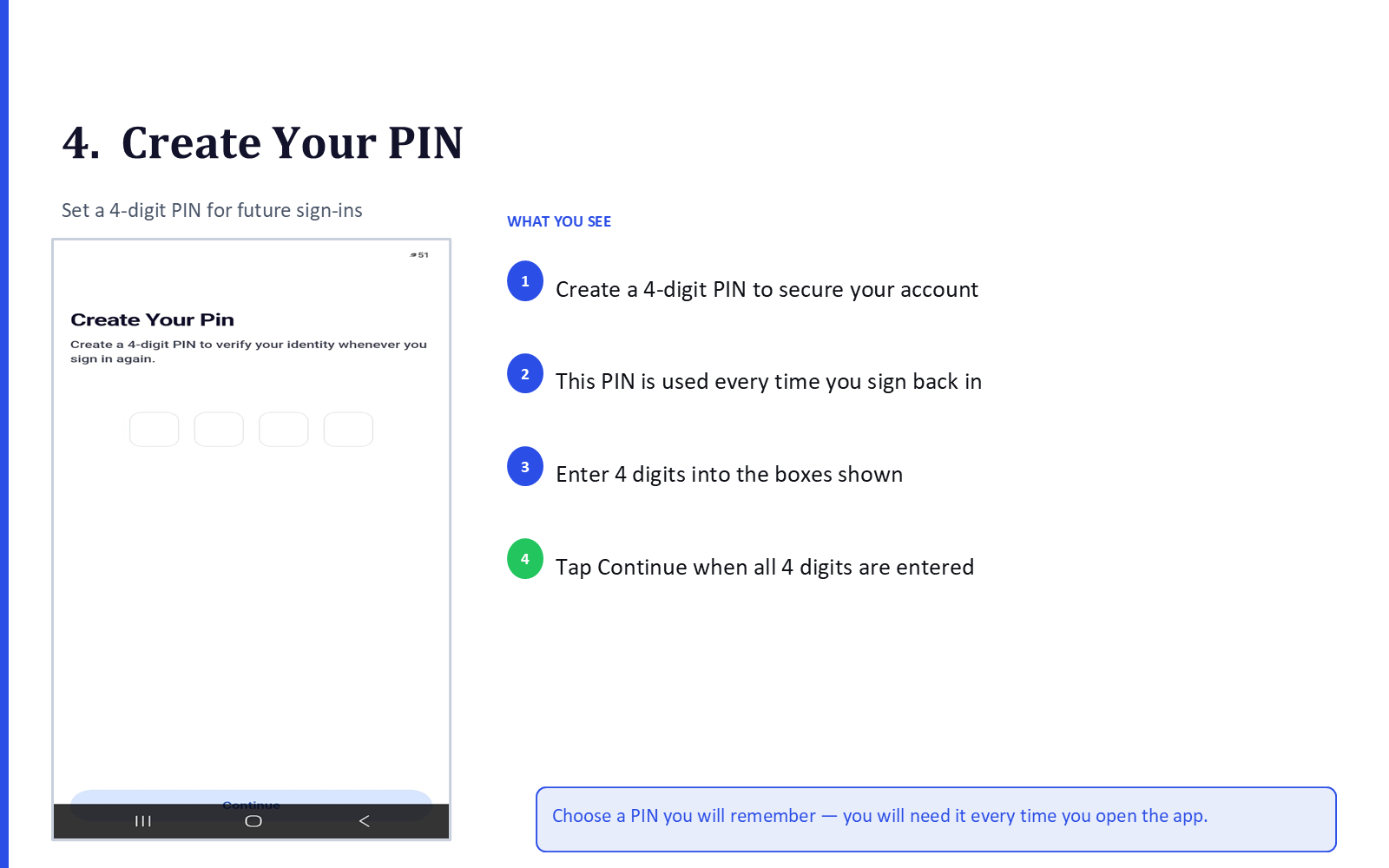
Set a 4-digit PIN for future sign-ins.
What you see:
- Create a 4-digit PIN to secure your account
- This PIN is used every time you sign back in
- Enter 4 digits into the boxes shown
- Tap Continue when all 4 digits are entered
Tip
Choose a PIN you will remember — you will need it every time you open the app.
6. Confirm Your PIN
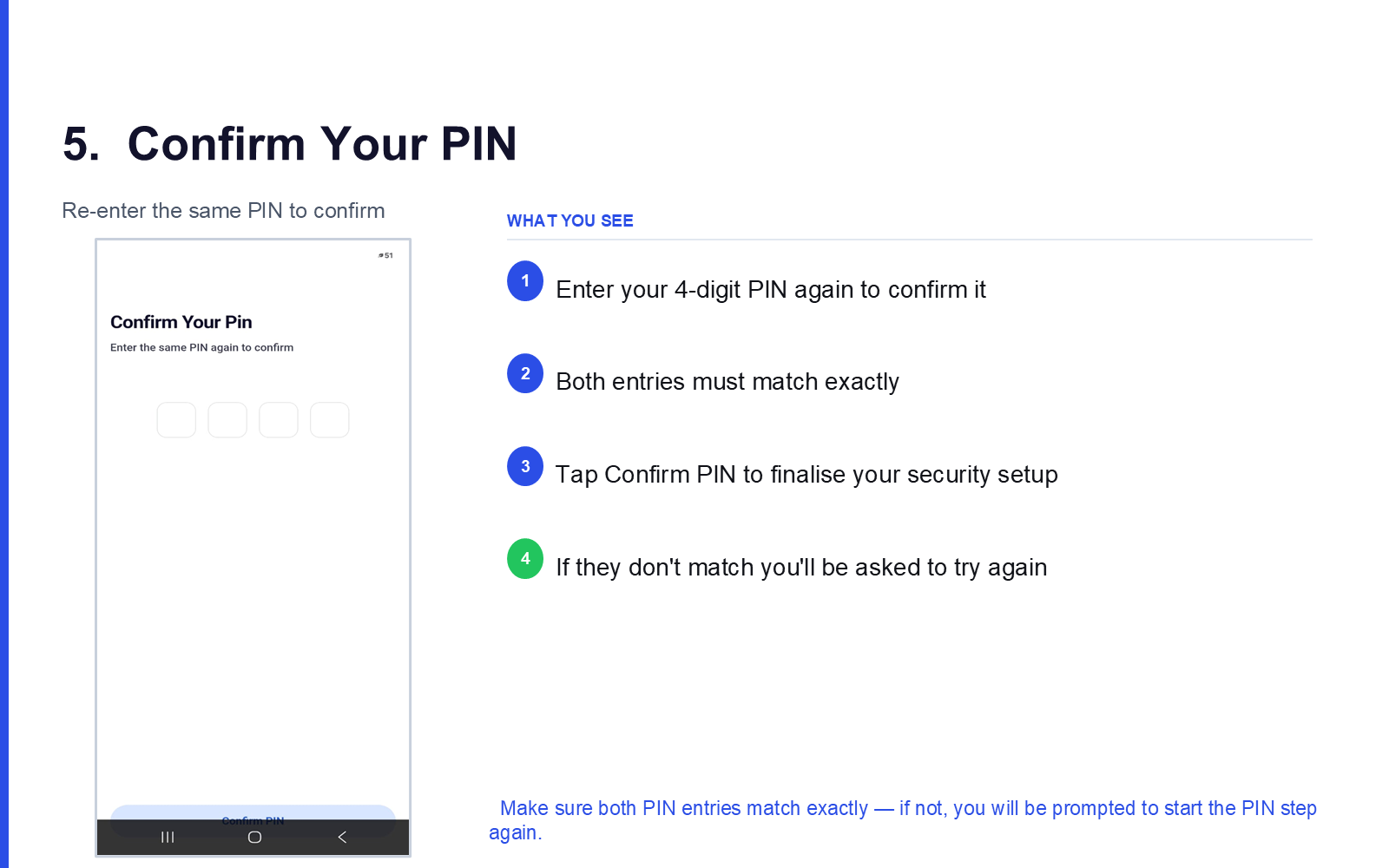
Re-enter the same PIN to confirm.
What you see:
- Enter your 4-digit PIN again to confirm it
- Both entries must match exactly
- Tap Confirm PIN to finalise your security setup
- If they don't match you'll be asked to try again
Tip
Make sure both PIN entries match exactly — if not, you will be prompted to start the PIN step again.
7. Enable Bluetooth
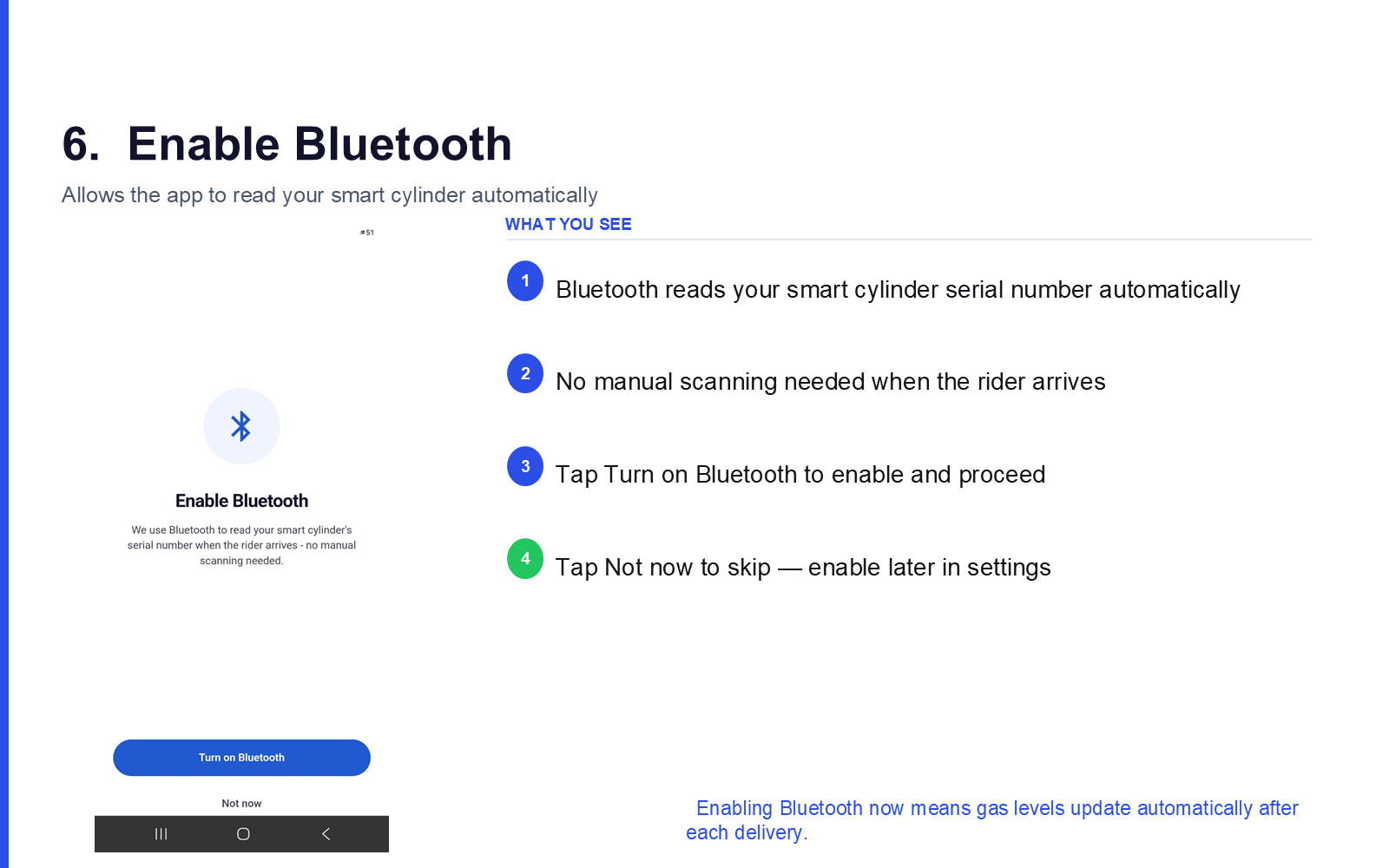
Allows the app to read your smart cylinder automatically.
What you see:
- Bluetooth reads your smart cylinder serial number automatically
- No manual scanning needed when the rider arrives
- Tap Turn on Bluetooth to enable and proceed
- Tap Not now to skip — enable later in settings
Tip
Enabling Bluetooth now means gas levels update automatically after each delivery.
8. Welcome Screens
A short set of screens telling the story of the product.
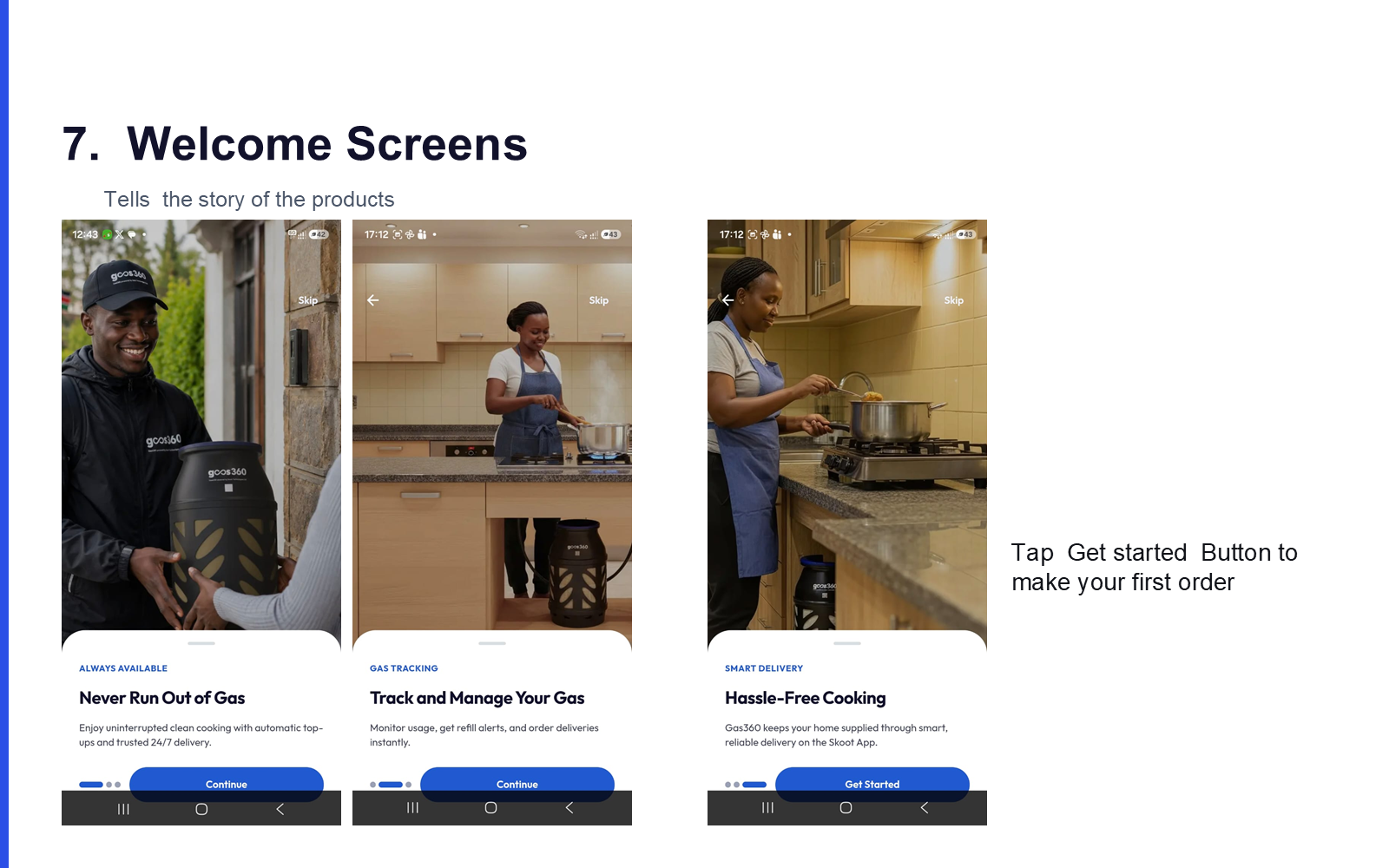
Tap Get started to make your first order.
9. Home Screen
Your home base once onboarding is complete.
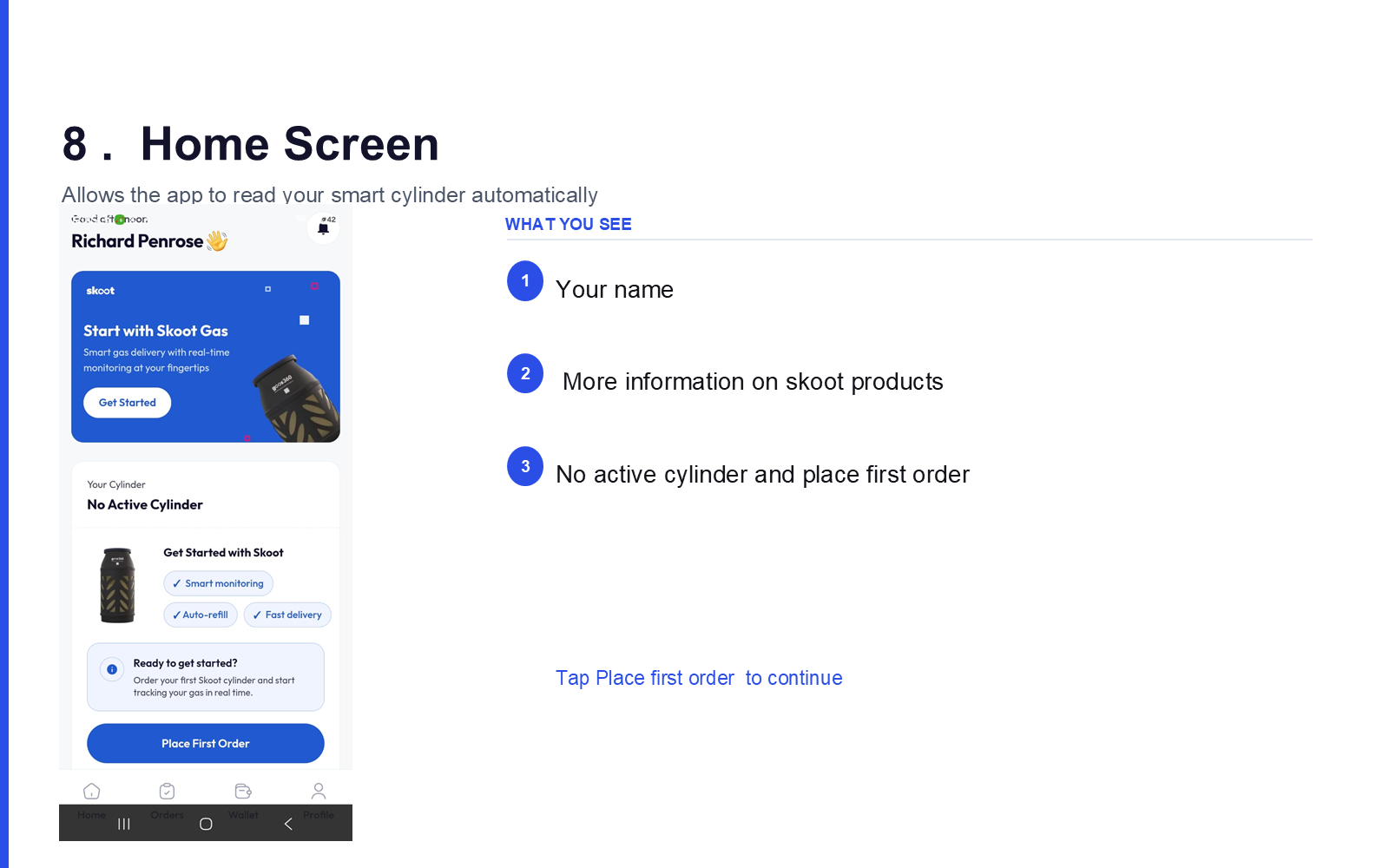
What you see:
- Your name
- More information on Skoot products
- No active cylinder — place your first order
Tip
Tap Place first order to continue.
Next: Ordering Flow →